
Photo editing · Editable preset
Watercolor Portrait from Photo
Create a watercolor interpretation of your portrait with adjustable instructions, white-space guidance and checks for facial detail.
Use this preset in the editorUpload your own reference and review settings before generating. The workspace shows available models and the current credit cost.
A real first-pass example
2026-10-08 · Seedream 5 Lite · Original output 1776 × 2352 pixels. Generated with the English preset; these web previews are resized.
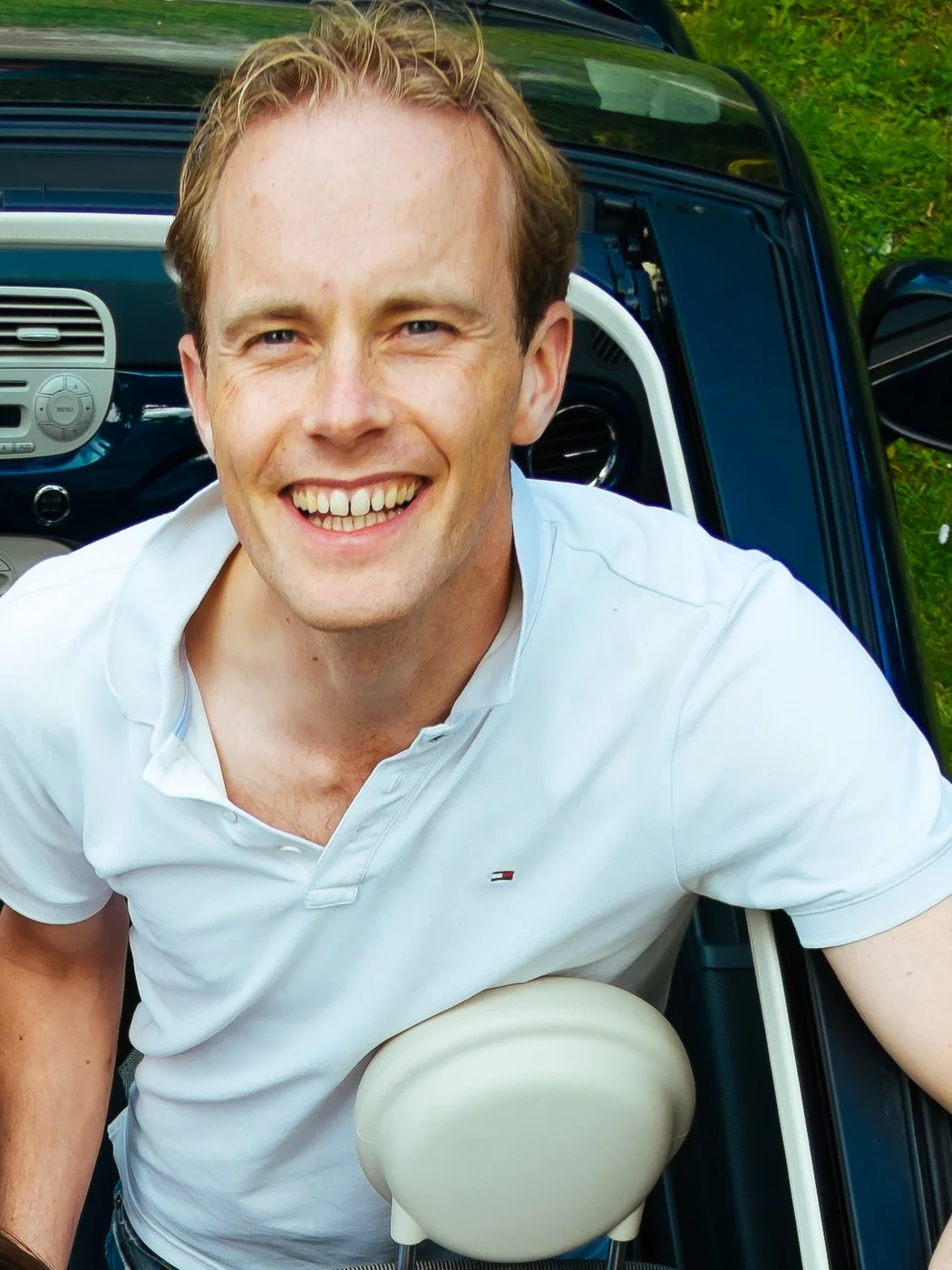
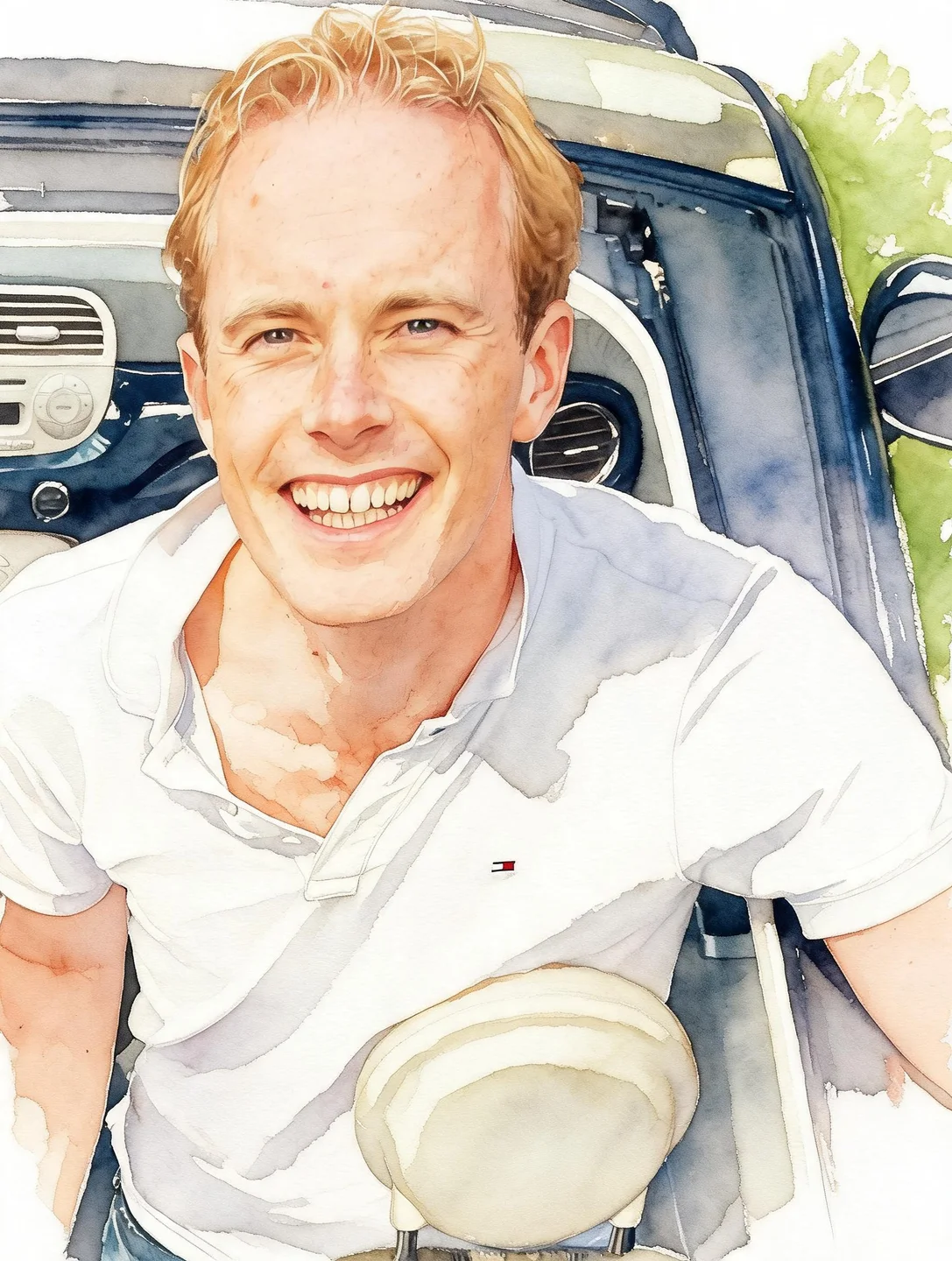
The model interpreted the face and clothing with watercolor washes, but retained the car interior despite the clean-paper instruction. Compare the eyes, smile and jawline with the reference. For a simpler background, revise the background request before making another deliberate attempt.
This is one generation from these references. Different photos or another run can produce different results. Open an image for a larger preview.
Read the exact prompt used for this example
Interpret the uploaded portrait as a light watercolor painting on white paper. Keep the photographed face, expression, hairstyle and visible pose as the reference. Use translucent washes, soft edges in the clothing and background, and controlled detail around the eyes and mouth. Leave clean paper around the subject. Do not add people, text, jewelry or a frame. Avoid heavy outlines, opaque skin paint and changes to facial proportions.
Reference photo: www.Pixel.la Free Stock Photos / Robert de Bock · CC0-1.0, cropped or resized and metadata removed.
.jpg)
A watercolor portrait works when the picture still feels like the person while the paint becomes lighter and more expressive. This preset asks the image editor for translucent washes, quieter clothing edges and detail around the eyes and mouth. It starts from a photograph instead of asking you to describe a face from scratch. You can change the prompt before making a generation request.
The output is a digital raster interpretation of watercolor, not a scanned hand-painted commission. It is useful for exploring a keepsake, a personal invitation illustration or a portrait layout. Faces can shift during stylization. Compare the source and output, especially when the picture is intended as a recognizable gift rather than a general decorative illustration.
Choose light and expression before choosing a style
Use a reference with a visible face, an expression you like and enough detail around the eyes. Soft, even light gives the model a clearer starting point than a heavily filtered selfie. Avoid combining a beauty filter, strong color grading and watercolor conversion in the same first attempt. Each transformation removes some reference information and makes it harder to tell where the face changed.
A head-and-shoulders photo is a practical starting point for the 3:4 preset. Keep a little room around hair and shoulders so that the painted edge can fade naturally into the paper. A source with a very busy background may carry unwanted shapes into the result. Crop unnecessary clutter before uploading, while keeping the complete outline of the person.
Apply the prompt and review its emphasis
Open the watercolor preset to enter image-to-image mode with the prompt and output ratio already filled. Upload one photo, check the selected model and review the generation cost shown in the workspace. Nothing is generated simply by opening the link. You can keep the default light-wash direction or replace it with a more specific description of the texture and background.
Describe visible effects rather than adding a long list of artistic adjectives. For example, ask for soft blue washes behind the shoulders, a clean white margin, or slightly more pigment in the clothing. The preset intentionally asks for controlled detail around eyes and mouth. Removing that instruction may produce a looser painting, but it also makes facial recognition a harder requirement to meet.
Balance paper, pigment and portrait detail
Watercolor does not need every part of the picture to have the same level of detail. A relatively clear face can sit beside softer clothing and an unfinished paper edge. If the whole picture looks blurred, ask for clearer eyes and mouth while keeping the background loose. If it looks like a photograph with a paper filter, request broader translucent washes in the clothing rather than stronger facial distortion.
Do not treat paper texture as evidence of a real physical painting. It is part of the generated appearance. If you plan to place the portrait on an invitation, leave enough blank area for the text in a separate layout. Generated lettering is an unnecessary source of spelling and alignment errors, so the preset asks for no text and no frame.
Fix common watercolor failures
Compare eye spacing, jaw shape, nose length and the position of the mouth with the source. A beautiful painting of a slightly different person is still a failed likeness for a personal portrait. If features shifted, simplify the style request and ask for a light watercolor treatment of the original composition. Begin again from the reference photo rather than repeatedly repainting the altered output.
Heavy dark outlines can make the result feel like a comic illustration. Replace that direction with soft paint edges and restrained contrast. Muddy skin can come from an overcomplicated palette request; use a simpler color instruction. If the hair blends into the background, request more separation around its outline while preserving soft edges elsewhere. Inspect hands as well as the face when the reference includes them.
Export the portrait for its actual destination
Download an approved result and check the crop at the size where it will be used. A square avatar may need a different composition from a 3:4 print. Use the browser cropper before final layout so that the finished image does not lose hair or shoulder detail unexpectedly. Choose PNG or JPG based on the destination, remembering that a white painted background is not the same thing as true transparency.
For a physical print, confirm the pixel dimensions and printer requirements instead of relying on the watercolor style name. The editor does not generate a layered painting file, editable brush strokes or an automatically color-managed print proof. Keep the original photo, generated result and final layout as separate files so that changing the invitation text does not require another model request.
Questions before you start
Can I control watercolor strength with a slider?
This workflow uses an editable prompt. It does not claim a dedicated watercolor-strength slider. Change the instructions for washes, edge softness and facial detail before generating.
Does a white background mean transparent PNG?
No. White paper is visible image content. Selecting PNG alone does not remove it. Use a separate background-removal workflow if you need actual transparent pixels.
Can I use a group portrait?
Yes, but small faces and overlapping bodies are harder to preserve. State the intended number of people and inspect each face. A clear single-person portrait is the simplest first reference.
Prepare your file after approving the edit
The existing browser tools can crop, resize or compress an approved file. These operations are separate from hosted model generation; keep a full-size copy first.
Free Image Cropper