
Photo editing · Editable preset
Remove an Object from a Photo
Describe a distracting object and its location, then use image-to-image editing with a checklist for background reconstruction and unintended changes.
Use this preset in the editorUpload your own reference and review settings before generating. The workspace shows available models and the current credit cost.
A real first-pass example
2026-10-08 · Seedream 5 Lite · Original output 2240 × 1680 pixels. Generated with the English preset; these web previews are resized.
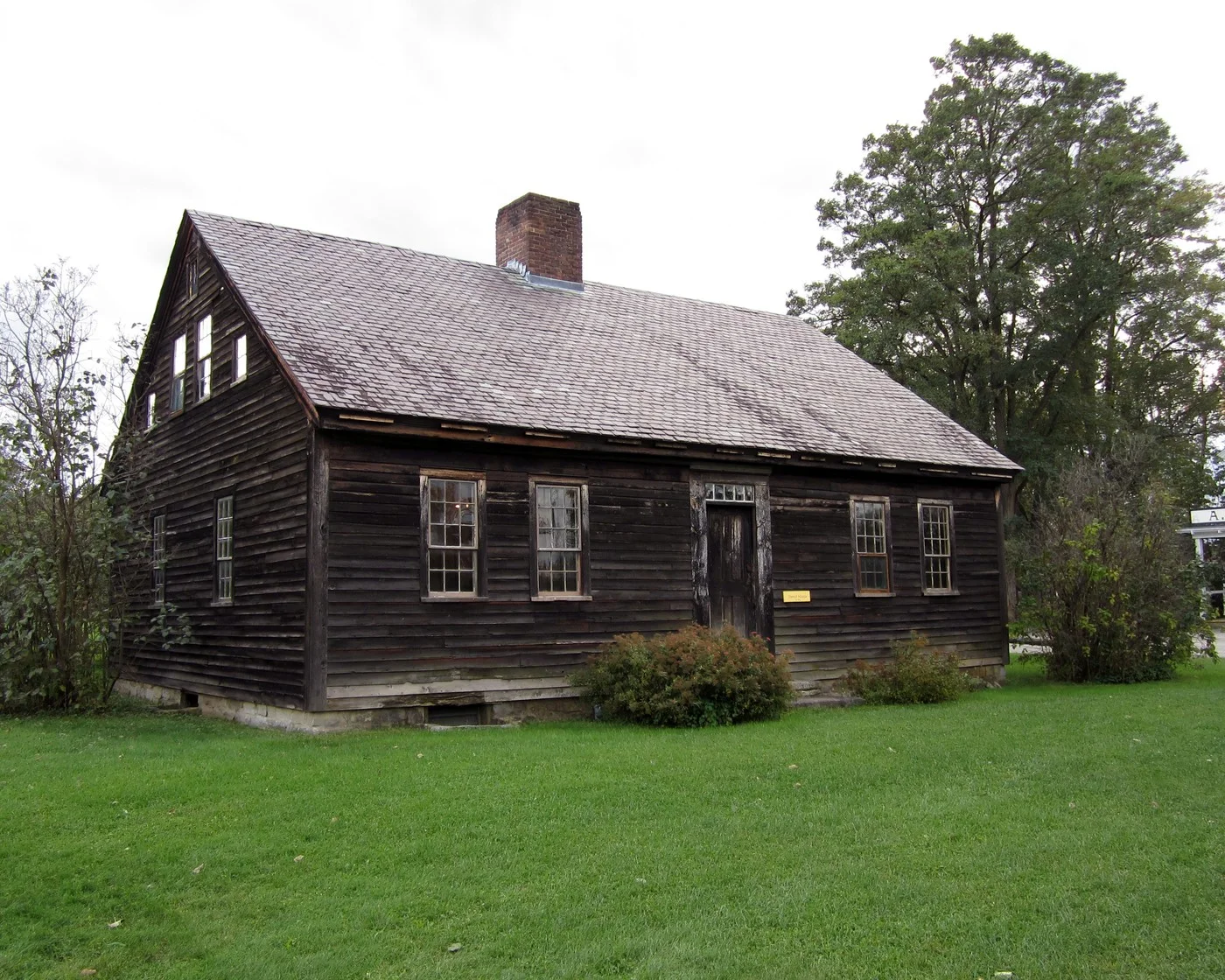
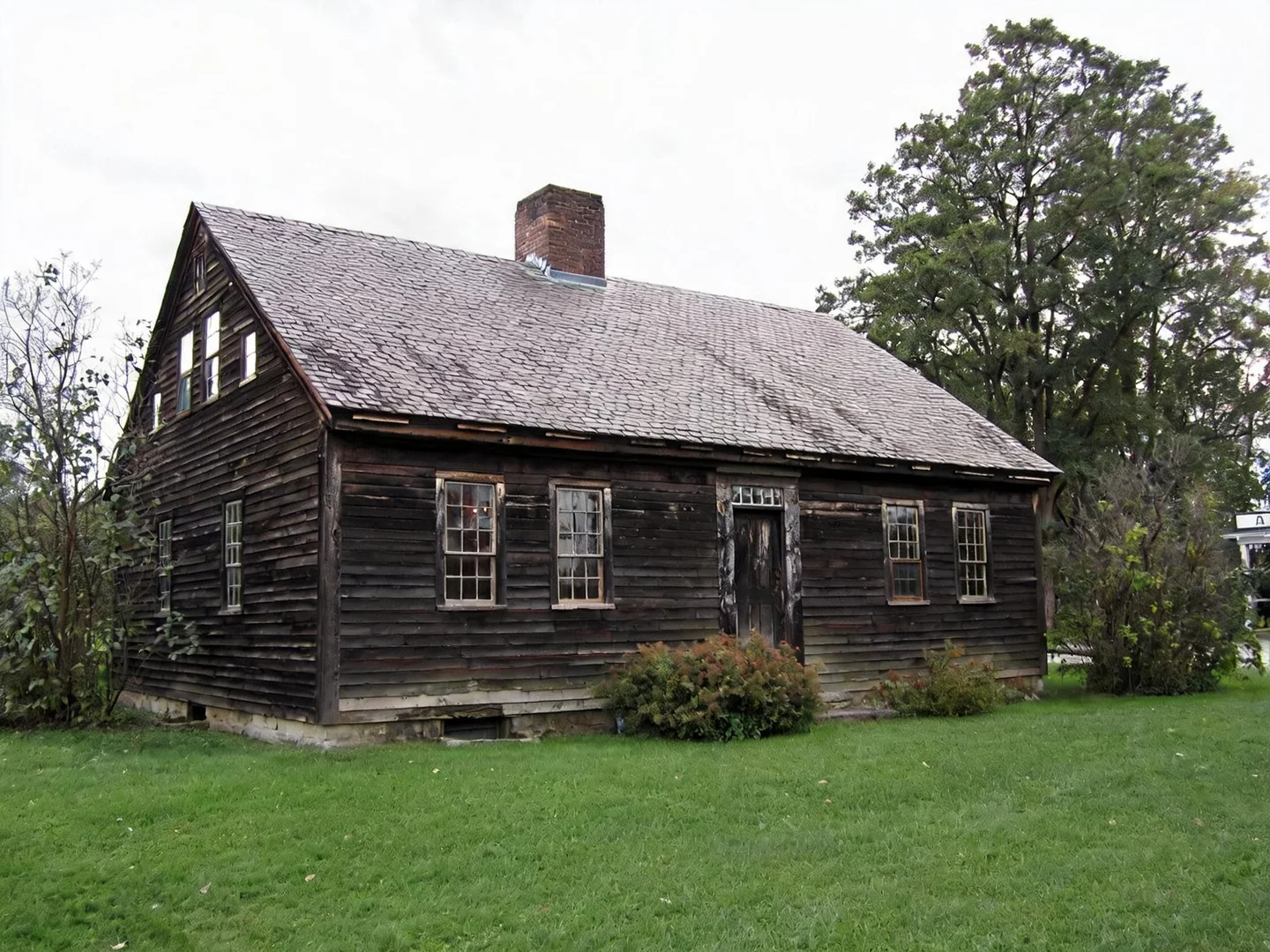
The test specifies the small yellow sign just to the right of the front door. Inspect that wall area for leftover color, repeated boards and changed edges, then compare the rest of the house. This is a generative fill, not recovery of the real surface hidden behind the sign.
This is one generation from these references. Different photos or another run can produce different results. Open an image for a larger preview.
Read the exact prompt used for this example
Remove the small yellow rectangular sign on the wooden wall just to the right of the front door from the uploaded photo. Reconstruct only that area using the surrounding background, lighting, perspective and texture. Keep other people, objects, text, crop and colors as close to the reference as possible. Do not add a replacement object. Avoid repeated texture, broken edges and obvious smears; do not invent factual detail that was hidden behind the object.
Reference photo: Storylanding · CC0-1.0, cropped or resized and metadata removed.

A small distracting object can draw attention away from the subject of a photo. This workflow starts with a prompt that asks the image editor to remove a named object and reconstruct the surrounding area. You supply the source photo and replace the bracketed description with the object and its location before generating.
The result is a generative reconstruction. It does not reveal what was actually behind the object, and it may alter other parts of the picture. This page describes the prompt-based editor that exists in the product; it does not promise a brush mask, a one-click object detector or a pixel-perfect background repair.
Pick an edit with a clear visual target
Start with a photo where the distracting object is easy to describe. A small cup on an otherwise visible table is a more constrained edit than a large person covering half a building. The surrounding image should contain enough texture and perspective for a plausible reconstruction. If an important face, sign or architectural detail sits behind the object, the model cannot know its original appearance.
Keep the original file and work on a separate output. Decide which surrounding features must stay unchanged before uploading: perhaps the horizon, a person's hand or the lettering on a product. If the object touches several of these areas, expect a more difficult result to review. Use a photo you have the right to edit; the workflow is intended for your own content or appropriately authorized material.
Replace the placeholder with a precise description
The preset opens image-to-image mode with a 4:3 starting ratio and an editable removal prompt. Upload one reference photo. In the prompt, replace the bracketed text with an object and a location, such as the small red cup at the lower-right edge of the table. The workspace prevents submission while the preset's placeholder is still present.
Name one main target in the first attempt. A short instruction that locates the object is easier to assess than a request to clean up everything distracting. Include a nearby visual landmark when left and right could be ambiguous. Do not include private information in the URL; the preset link contains only an approved identifier, and your edited prompt stays in the normal workspace form.
Keep the intended boundary narrow
The prompt asks for the surrounding lighting, perspective and texture to guide the fill. It also asks to keep the rest of the crop, people and objects close to the source. These instructions express the intended edit; they are not a guarantee that all other pixels remain untouched. This workspace does not offer a painted selection mask for this preset.
If the target overlaps a straight line, such as a shelf edge or a wall tile, mention that continuity matters. If it covers a complex repeated pattern, look closely for a broken repeat. Removing a shadow without removing the object, or the object without its shadow, can leave an obvious inconsistency. Include the target's associated shadow in the instruction only when that is part of the intended change.
Inspect the repaired area and everything around it
Compare the output with the source at full image view first, then zoom into the removed region. Look for repeated texture, smeared detail, broken edges and a ghost outline. Check nearby text, fingers, jewelry and product features even when they were not the target. An attractive fill can hide an unrelated change elsewhere.
If the wrong object disappears, make the location more specific and try again from the original photo. If the fill looks implausible, simplify the requested edit or use a source with more visible background. Do not keep regenerating without inspecting the last attempt and the current task state. When an accurate local edit is essential, consider a conventional masking or cloning workflow that gives direct control over the edited area.
Save a result with a clear purpose
Download only after you approve both the repaired area and the preserved surroundings. Keep the original and edited files separately so that the transformation remains reviewable. If the destination is a web page or a message, the browser image compressor can reduce file size after the edit is accepted. Save a full-resolution copy before making a smaller derivative.
The output is a raster image, not a layered retouch file or proof of the hidden background. Do not present reconstructed detail as documentary evidence. The 4:3 preset is an adjustable starting canvas; if your original is vertical, select a matching ratio to reduce composition changes. The workspace's current model, resolution and credit rules determine the available generation options.
Questions before you start
Do I draw over the object?
This preset uses a written object description in the existing image-to-image editor. It does not add a dedicated brush or mask interface.
Why is Generate blocked after opening the preset?
Replace the bracketed object description with the actual object and its location, and add a valid source image. These checks prevent sending an unfinished instruction.
Will the rest of the photo stay exactly unchanged?
No. Generative editing can modify nearby or unrelated detail. Compare the whole image and reject results that change important features.
Prepare your file after approving the edit
The existing browser tools can crop, resize or compress an approved file. These operations are separate from hosted model generation; keep a full-size copy first.
Free Image Compressor