
Photo editing · Editable preset
House Portrait from Photo
Make a house illustration from a building photo with a structural-reference prompt and a door, window and roofline review checklist.
Use this preset in the editorUpload your own reference and review settings before generating. The workspace shows available models and the current credit cost.
A real first-pass example
2026-10-08 · Seedream 5 Lite · Original output 2352 × 1776 pixels. Generated with the English preset; these web previews are resized.
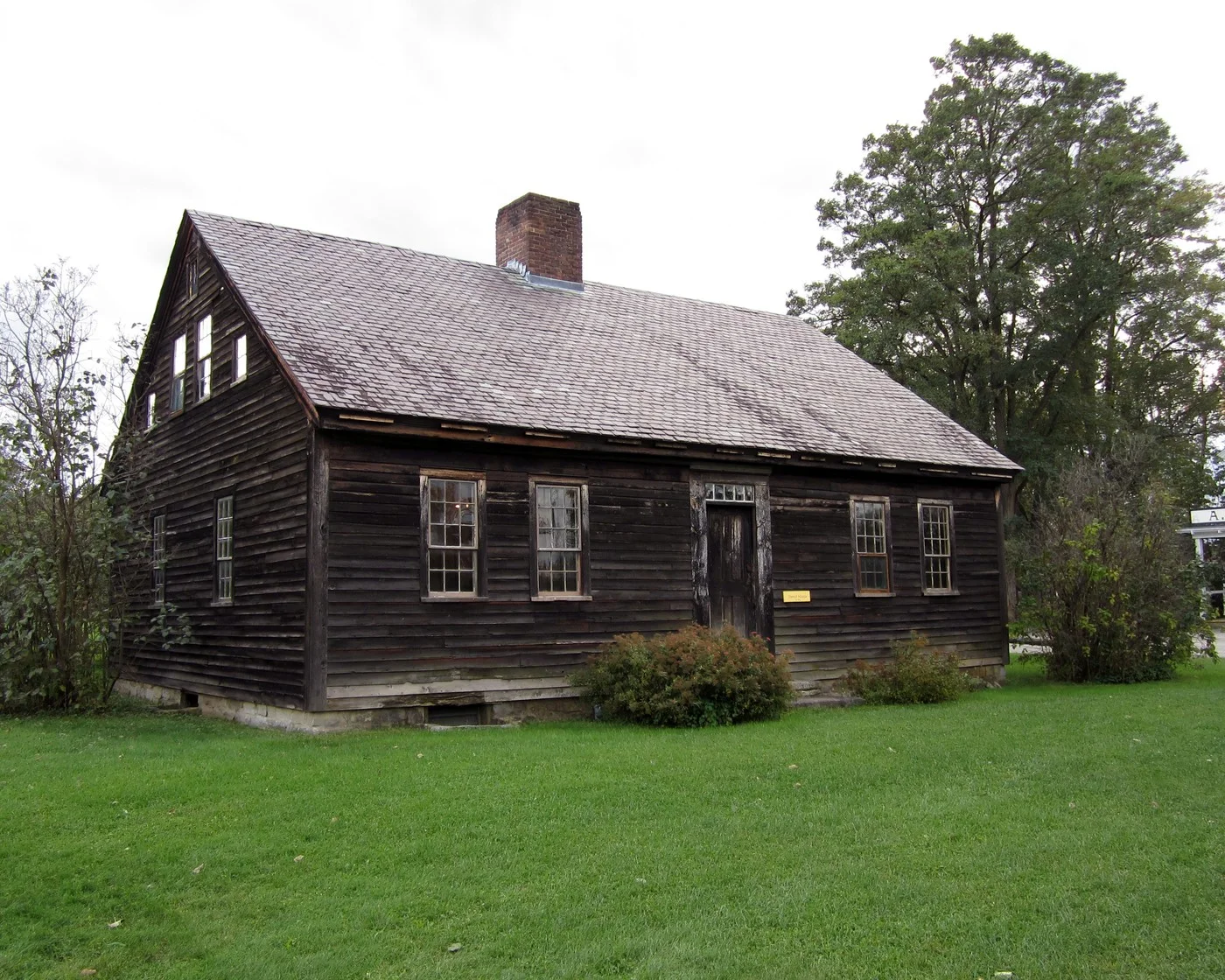
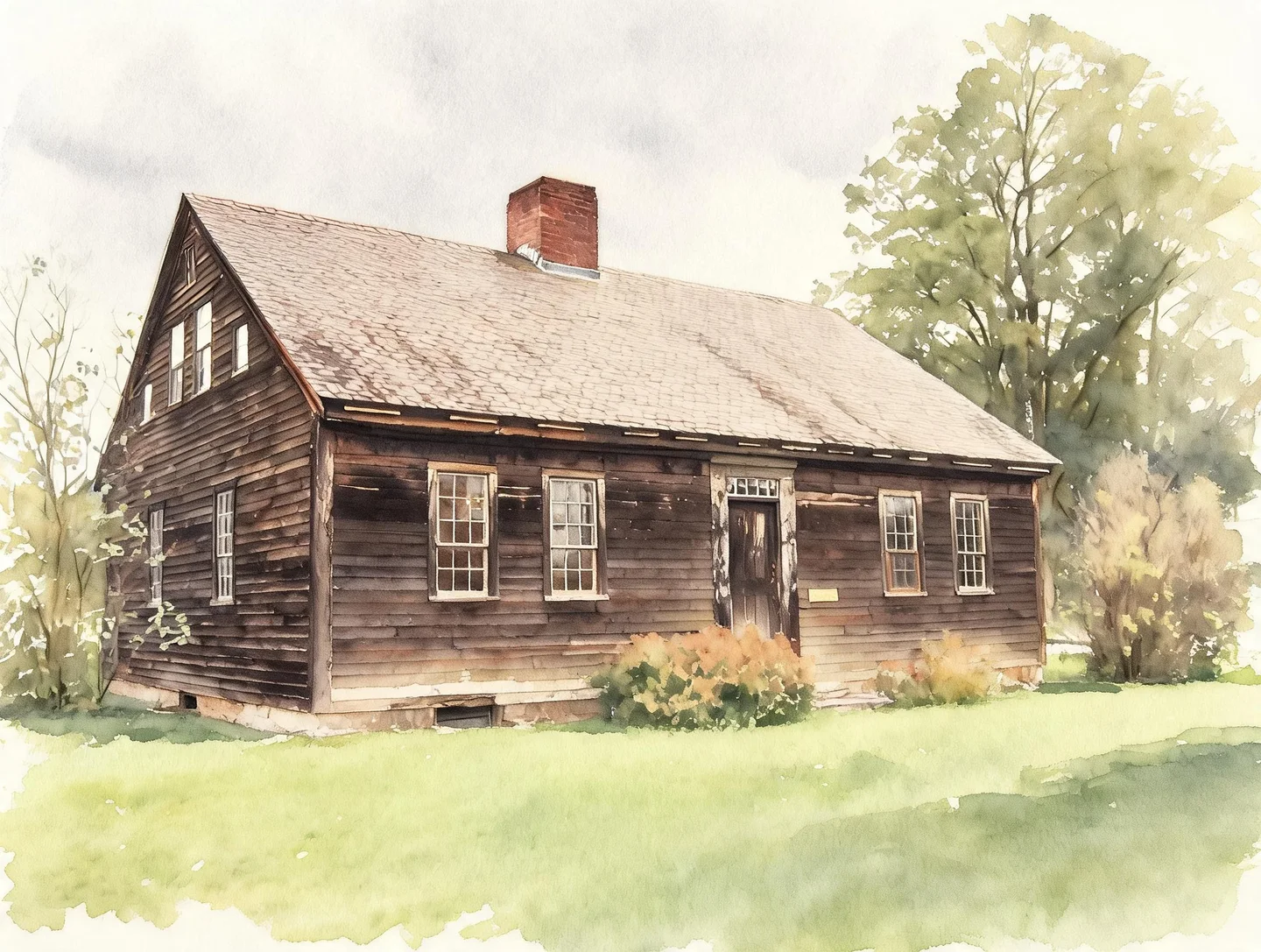
The output presents a watercolor interpretation of the Stencil House photograph. The visible roof, doorway and main window arrangement remain recognizable, while foliage and surface details are simplified. Count the windows and inspect panes and roof edges yourself before approving an architectural keepsake.
This is one generation from these references. Different photos or another run can produce different results. Open an image for a larger preview.
Read the exact prompt used for this example
Create a restrained watercolor house portrait using the uploaded building photograph as the structural reference. Follow the visible roofline, number and placement of doors and windows, facade colors and viewpoint. Keep the whole visible building inside the frame, with a simple light background and a little foreground. Simplify foliage without replacing architectural features. Do not add an address, lettering, extra floors or invented windows. Leave obscured structural details unresolved rather than inventing them.
Reference photo: Storylanding · CC0-1.0, cropped or resized and metadata removed.

A house portrait is recognizable because of its structure, not just its color palette. The doorway, roof pitch and arrangement of the windows often matter more than decorative trees. This workflow uses your building photograph as the reference for a restrained watercolor interpretation. The preset opens the image editor with a landscape ratio and a prompt that asks for visible architectural features to remain useful reference points.
Use it to explore a housewarming gift, a personal address-card illustration or a keepsake of a former home. The generated result is an illustration, not a measured elevation, planning document or surveyed record of the building. The model can invent doors and windows. The review process on this page helps you notice those changes before treating a result as approved.
Photograph the building from a useful viewpoint
Choose a photo where the whole visible facade fits inside the frame. A fairly level camera and a clear view of the roofline make the reference easier to interpret. If a parked vehicle hides the entrance, use another photograph when possible. A prompt cannot establish which architectural details actually sit behind an obstruction.
Check that the important features are large enough to inspect: the number of window panes, the placement of a porch and the outline of a chimney. Crop away irrelevant street clutter only when doing so leaves the building complete. Do not straighten the photograph so aggressively that the house becomes unnaturally wide. A pleasant illustration can still retain some of the original camera perspective.
Start a landscape house portrait
The preset selects image-to-image editing, a 4:3 canvas and a house-specific prompt. Upload one building photo in the workspace. Opening the preset does not send the photo to a provider or start a generation. Review the model, resolution and displayed cost when you are ready to submit. The output ratio is a starting layout, and you can change it for a taller or wider facade.
The prompt separates structural details from decorative interpretation. It asks for the visible doors, windows, roofline and viewpoint to guide the result, while foliage can become simpler. For the first attempt, leave out requests for a different season, an elaborate garden or a dramatic sky. Those changes can compete with the more important job of keeping the building recognizable.
Keep address text separate from the illustration
The preset excludes added addresses and lettering. Small house numbers, shop signs and lettering on a gate are easy for an image model to alter. If that information matters, compare it with the source and add the final text in a separate layout step. Do not assume that plausible-looking characters are correct.
Describe a visual correction with a location: keep the red front door below the central window, or retain the two narrow windows to the left of the porch. Avoid asking the model to create hidden rear elevations or complete structural details that the photo does not show. The result should be judged as a stylized interpretation of the visible view, not evidence of an unseen part of the property.
Review geometry before approving the style
Count doors and windows from left to right in both the source and output. Follow the roofline around chimneys and dormers, and check that columns and porch rails connect plausibly. Then compare facade colors and the building's proportions. A charming watercolor with an additional floor or a missing entrance needs correction.
If the model invents features, remove decorative instructions and request less structural reinterpretation. If foliage swallows a window, use a clearer source photo or explicitly name that window's position. Repeated patterns in brickwork are usually less important than a changed roof silhouette, so prioritize the differences that affect the building's identity. Inspect the image at full size; errors can disappear in a small preview.
Finish the file for a card or keepsake
Leave a margin around the roof and foreground when preparing the final crop. A printer or card template may trim a little around the edges, so avoid placing important details against the boundary. Download the output and verify its pixel dimensions against the destination's requirements. A 4:3 image is a shape choice, not a promise of a print-ready physical size.
The result is a raster illustration. It does not contain CAD lines, editable vectors, architectural measurements or verified property information. If you need a small web image, the browser image compressor can reduce the file size after you approve the details. Save a full-size approved copy first so that a later compression setting does not become your only version.
Questions before you start
Will every window stay in exactly the same place?
No. The prompt asks for structural consistency, but generative editing can change geometry. Count and compare the visible features before using the illustration.
Can the editor remove a car blocking the house?
It can attempt an edit, but the hidden facade would be an invention. A second unobstructed source photo is a more reliable reference for an accurate keepsake.
Is this an architectural rendering service?
It creates a stylized image from your photo. It does not provide measured drawings, engineering checks or a professional architectural commission.
Prepare your file after approving the edit
The existing browser tools can crop, resize or compress an approved file. These operations are separate from hosted model generation; keep a full-size copy first.
Free Image Compressor