
Photo editing · Editable preset
Natural AI Portrait Retouching
Make a restrained portrait edit with a texture-preserving prompt, adjustable settings and checks for changes to facial features.
Use this preset in the editorUpload your own reference and review settings before generating. The workspace shows available models and the current credit cost.
A real first-pass example
2026-10-08 · Seedream 5 Lite · Original output 1776 × 2352 pixels. Generated with the English preset; these web previews are resized.
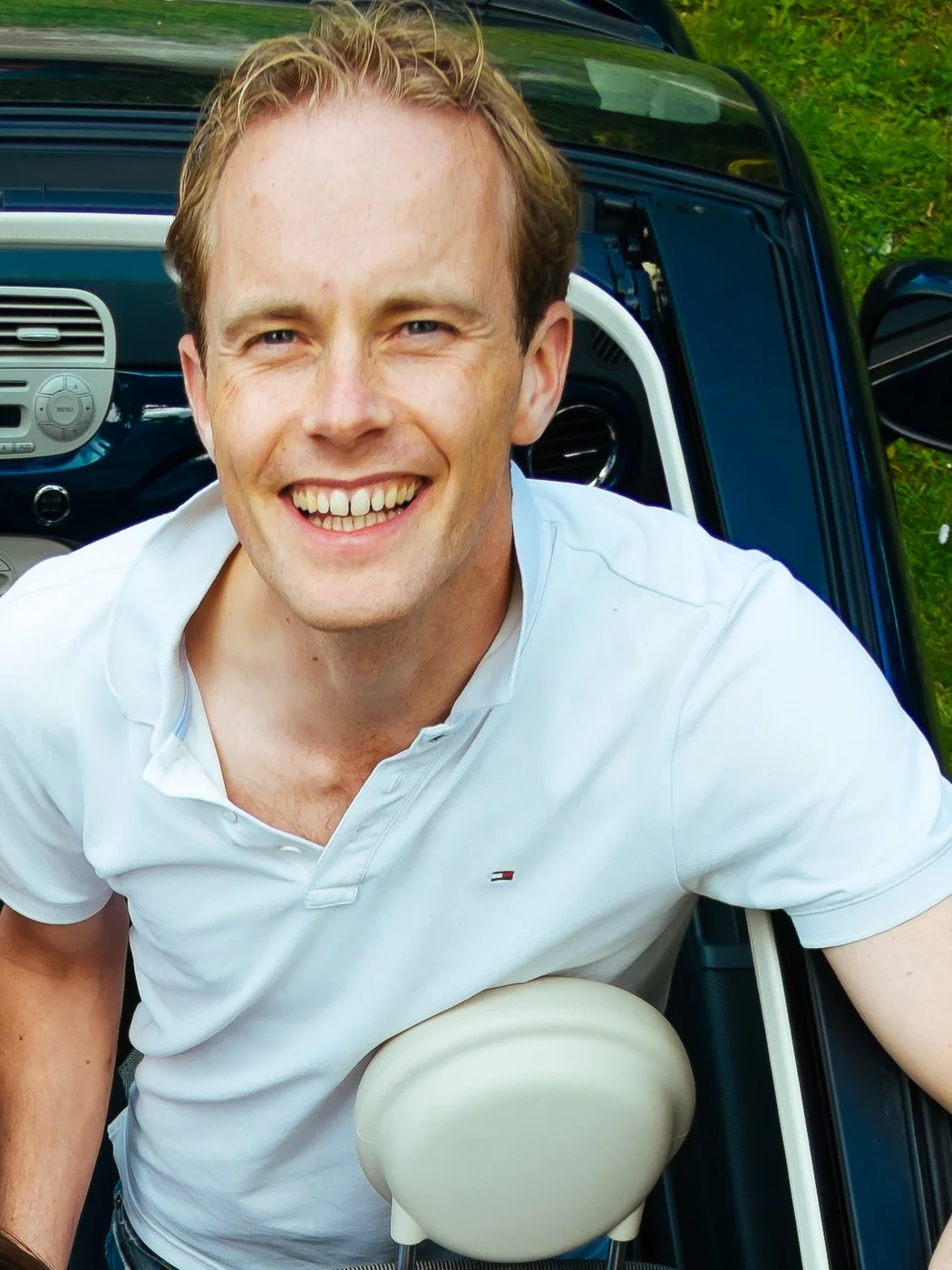
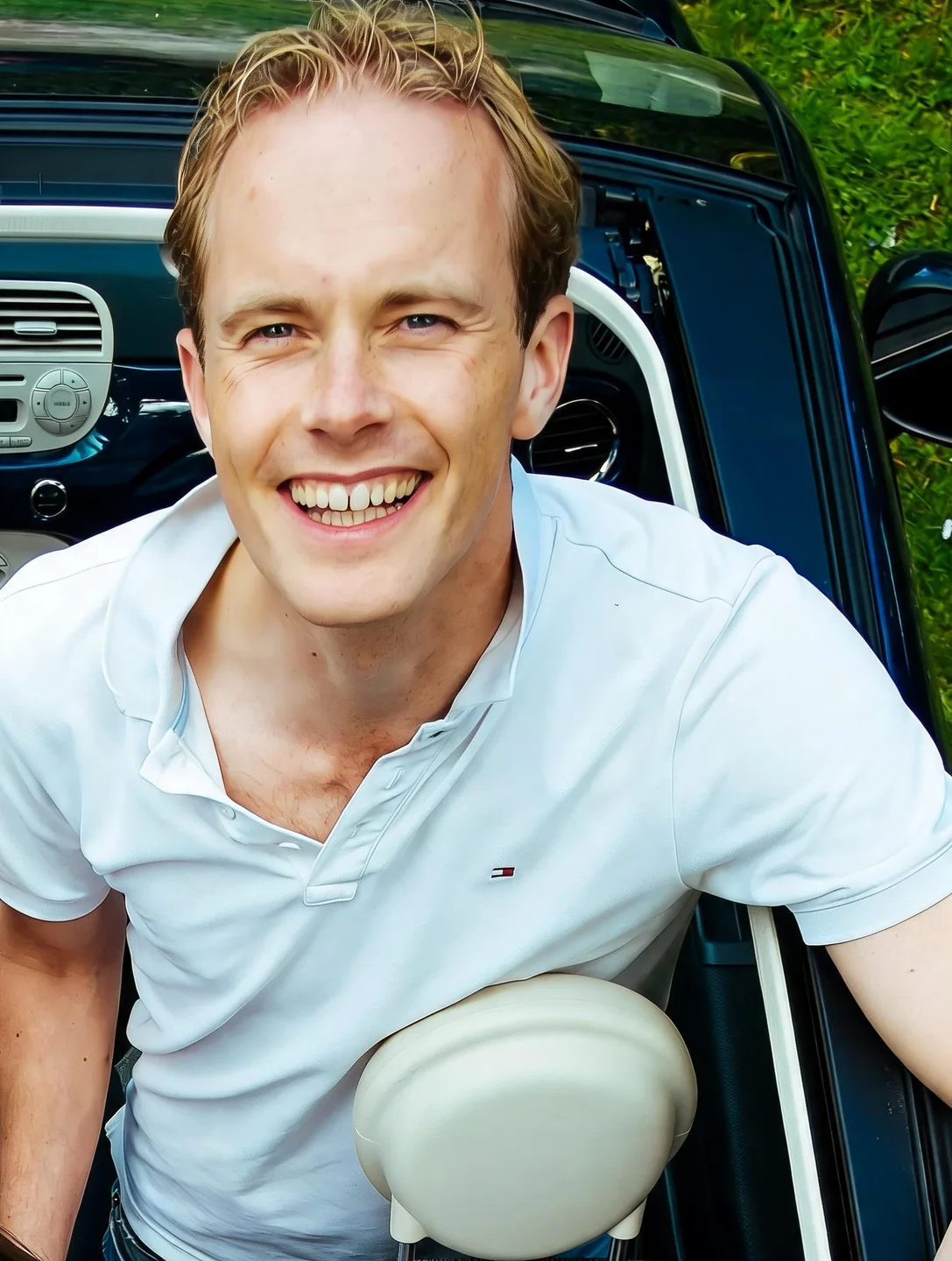
The result softens the skin and balances the portrait, with the car interior still present. Some fine texture and freckles are less visible than in the source, so the correction may be stronger than you want. Compare at full size and reduce the retouch instruction if distinctive features become too faint.
This is one generation from these references. Different photos or another run can produce different results. Open an image for a larger preview.
Read the exact prompt used for this example
Apply a subtle photographic retouch to this portrait. Gently balance exposure and white balance, reduce temporary blemishes and soften distracting under-eye shadows while retaining skin texture. Use the original facial proportions, expression, age, hairstyle, clothing and background. Keep freckles and distinctive permanent features. Avoid reshaping the face or body, whitening all teeth, enlarging eyes or smoothing skin into plastic. Aim for a small correction that still looks like the source photograph.
Reference photo: www.Pixel.la Free Stock Photos / Robert de Bock · CC0-1.0, cropped or resized and metadata removed.
.jpg)
Portrait retouching is most useful when it fixes a distraction without changing who the picture looks like. This preset asks for modest exposure and white-balance corrections, reduced temporary blemishes and retained skin texture. It uses the existing image-to-image workspace and gives you the complete prompt to edit before generating.
This is a generative edit, not a conventional set of localized retouching layers. The model can change areas outside the requested correction. Use the result as a draft to compare against the original, particularly for a profile image, portfolio or client-facing headshot. It is not a dedicated historical-photo restoration service or a guarantee of identity preservation.
Start with the best available portrait
Upload the original portrait at a usable resolution. Prefer a face with visible eyes and natural skin detail over a heavily compressed screenshot. If the source is already softened by a camera beauty filter, another retouch can remove even more detail. Keep a copy of the untouched photograph so that comparison is possible after each attempt.
Choose a source whose expression, pose and framing you already like. Retouching is a more focused task when it does not also require a new hairstyle, wardrobe and background. A 3:4 crop is a practical starting point for head-and-shoulders use, but choose a ratio that fits the destination and leaves room around the hairline. Do not rely on the model to recreate a missing edge of the face.
Make the correction specific and limited
The preset opens image-to-image mode, loads the natural-retouch prompt and selects 3:4. Add one reference image and review the current model, output options and displayed generation cost. Opening the link does not run the model or spend credits. The starting prompt can be edited freely, so use it to describe the small correction that matters for your particular photo.
For example, ask to reduce a strong color cast or soften a temporary spot while keeping freckles. Permanent features such as moles, scars and wrinkles can be important to recognition. If you want to retain a particular feature, say so explicitly and still inspect the output. Avoid mixing a subtle retouch request with words that invite a different face, age or body shape.
Keep skin texture and natural contrast
A natural-looking portrait includes variation in the skin. The default prompt asks the model to retain texture instead of applying blanket smoothing. Check cheek and forehead areas at normal viewing size and then at a closer zoom. Plastic-looking surfaces, overly sharp pores and identical texture across every part of the face are all reasons to reconsider the result.
Exposure correction should also make sense across the image. A much brighter face against unchanged dark neck and hands can look artificial. If the result is too glossy, ask for a smaller adjustment and remove any dramatic studio-lighting instruction. For a simple tonal correction where exact pixels must remain under your control, a conventional image editor with local adjustment tools may be a better fit than generative retouching.
Compare features before sharing
Inspect eye size and spacing, nose shape, jawline and mouth position against the source. Check that glasses still connect correctly and that teeth have not become unnaturally uniform. Hair and background text can also change even though the prompt focuses on skin. The relevant question is whether the approved output still matches your intended representation.
If facial shape changes, return to the original and shorten the edit request. If the background changed, explicitly limit the next attempt to the desired photographic correction and inspect that boundary again. Repeatedly retouching generated outputs can accumulate changes. Keep the first source as the reference rather than assuming the latest result is a more accurate foundation.
Prepare a version for a real use
Download the image and inspect the actual file rather than only the preview. For a profile photo, test the destination crop and the appearance at small size. For a printed headshot, check the pixel dimensions and print provider's requirements. The output ratio and resolution controls describe an image file, not a promise about a particular print process.
Use the browser image resizer for final dimensions after approving the retouch. Save a full-resolution version separately from a small web export. This workflow does not produce editable retouch layers, a face-authentication result or compliant passport-photo certification. Do not use generative edits where the receiving organization requires an unaltered photograph.
Questions before you start
Does this remove every skin mark?
The preset aims for restrained correction and asks to keep distinctive permanent features. Edit the prompt to state what you want retained. Inspect the result because the model can still change details.
Is this an old-photo restoration tool?
No. This page focuses on present-day portrait editing and appearance. It does not claim a specialized restoration model or recovery of historically accurate lost detail.
Can I preview without generating?
You can inspect the filled prompt and settings without starting a task. An actual new edited result requires a model generation under the workspace's current access and credit rules.
Prepare your file after approving the edit
The existing browser tools can crop, resize or compress an approved file. These operations are separate from hosted model generation; keep a full-size copy first.
Free Image Resizer