
Product visual · Photo to image
AI Product Photo Generator
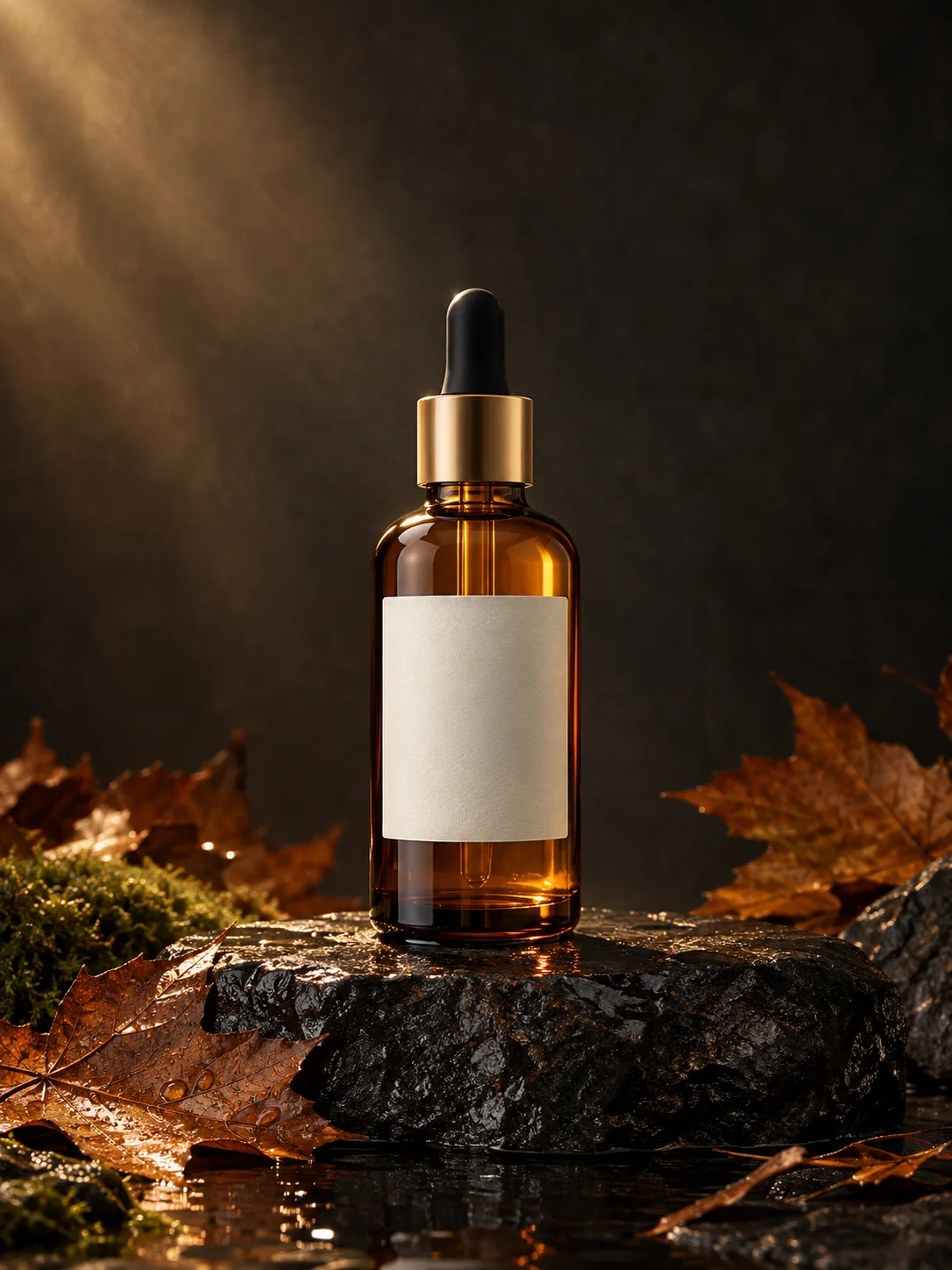
Turn an ordinary product photo into a controlled autumn campaign image while keeping the product shape and label area intact.
Upload a product photo and the editor opens with a commercial still-life prompt. The product, camera angle, and label area stay as references while the stone surface, leaves, light, and background become a seasonal campaign scene. Always inspect labels and edges after generating.
Starts from one or more reference photos, depending on the scene.
Updated for the 2026 Halloween season
How this scene works
- 01
Photograph the product cleanly
Use a straight-on or slightly angled product photo with readable edges. Avoid a screenshot or a photo where the label is already blurred.
- 02
Keep the product fixed
State that the bottle shape, cap, label placement, and product color must stay close to the source. Change only the surface, props, and lighting.
- 03
Check label and silhouette
Inspect every edge, the cap alignment, reflections, and any text area. A beautiful scene with a distorted product is not usable.
Editable prompt
This preset is designed for an unbranded or editable label area. It asks for realistic glass, metal, stone, and dried leaves, and it excludes text, logos, hands, and extra products.
Model prompts remain in English because the image and video models are tuned for it. The surrounding guidance is localized.
Use the uploaded product photo as the primary reference. Preserve the product shape, cap, label boundaries, product color and camera angle. Place the product on a wet dark stone plinth in a charcoal studio with a few dried maple leaves and a soft pool of warm light. Create a premium autumn campaign still life with controlled reflections, realistic glass or metal, and natural shadows. Keep one product only and leave any label area intentionally blank where possible. Do not invent readable text, logos, prices, hands or extra products. Use photorealistic high-end commercial product photography and a restrained charcoal, amber and muted copper palette.Copy this prompt into the workspace or use the prepared button above.
Questions before you start
Can I use this for a real product listing?
Use it as a concept or draft, then verify the exact product, label, and legal claims. Do not present a generated scene as an unedited product photograph.
Will the label text be preserved?
Exact text preservation is not guaranteed. Keep the label blank in the prompt when possible and composite the verified label or campaign copy afterwards.
Can I generate several campaign angles?
Yes, but change one scene decision at a time. Start with the product silhouette, then vary the surface, season, or camera angle in separate attempts.
Start with your own reference
Open the workspace, review the settings and credit cost, then generate. Opening a scene never submits a paid task.
Related scenes
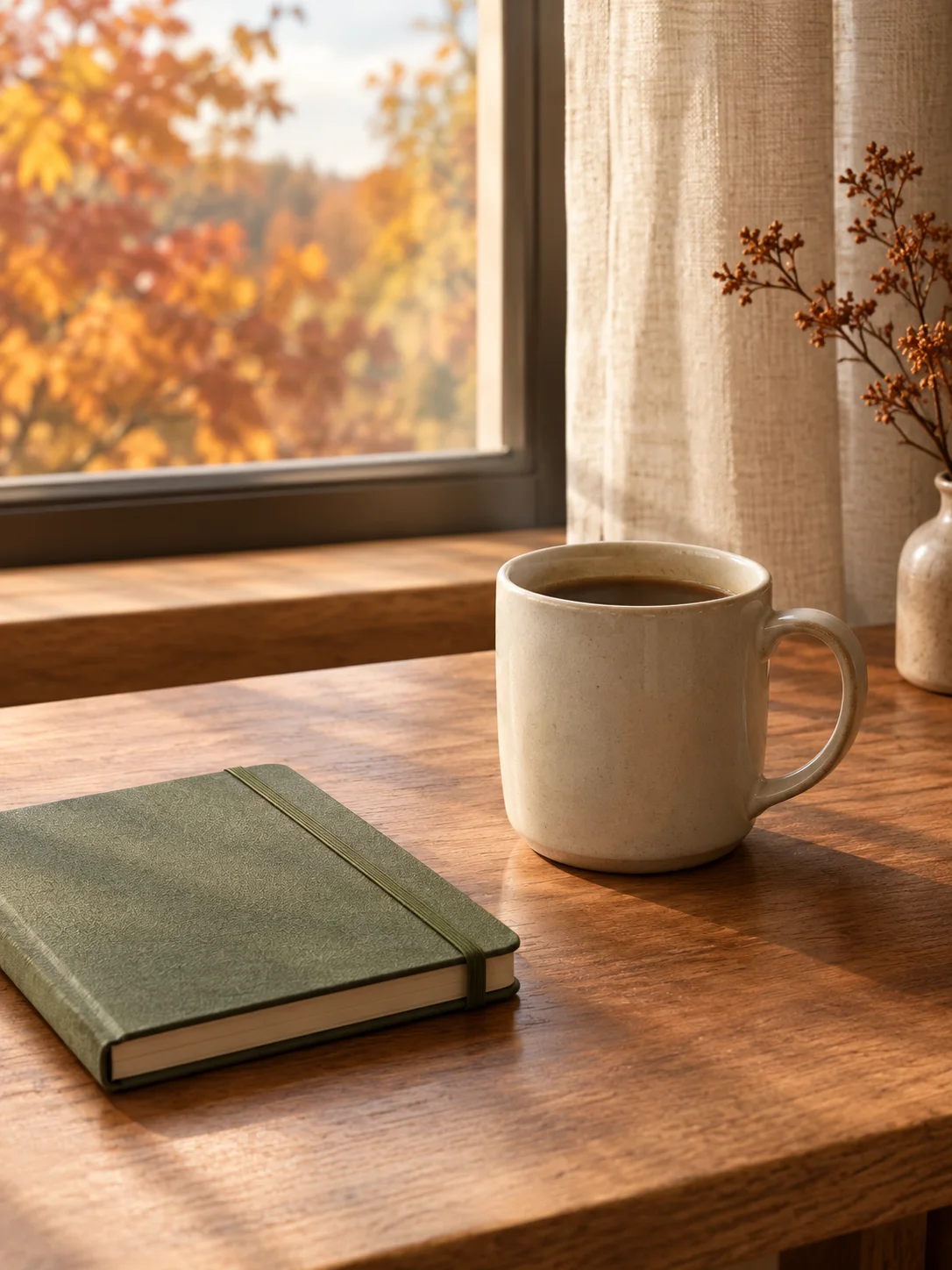 Image edit
AI Background Replacement
Replace a distracting background with a controlled seasonal or studio scene while preserving the subject and crop.
View the workflow and prompt Image to video
Black Friday AI Video Generator
Create a short product reveal video for a Black Friday campaign from one product still, without inventing a fake discount.
View the workflow and prompt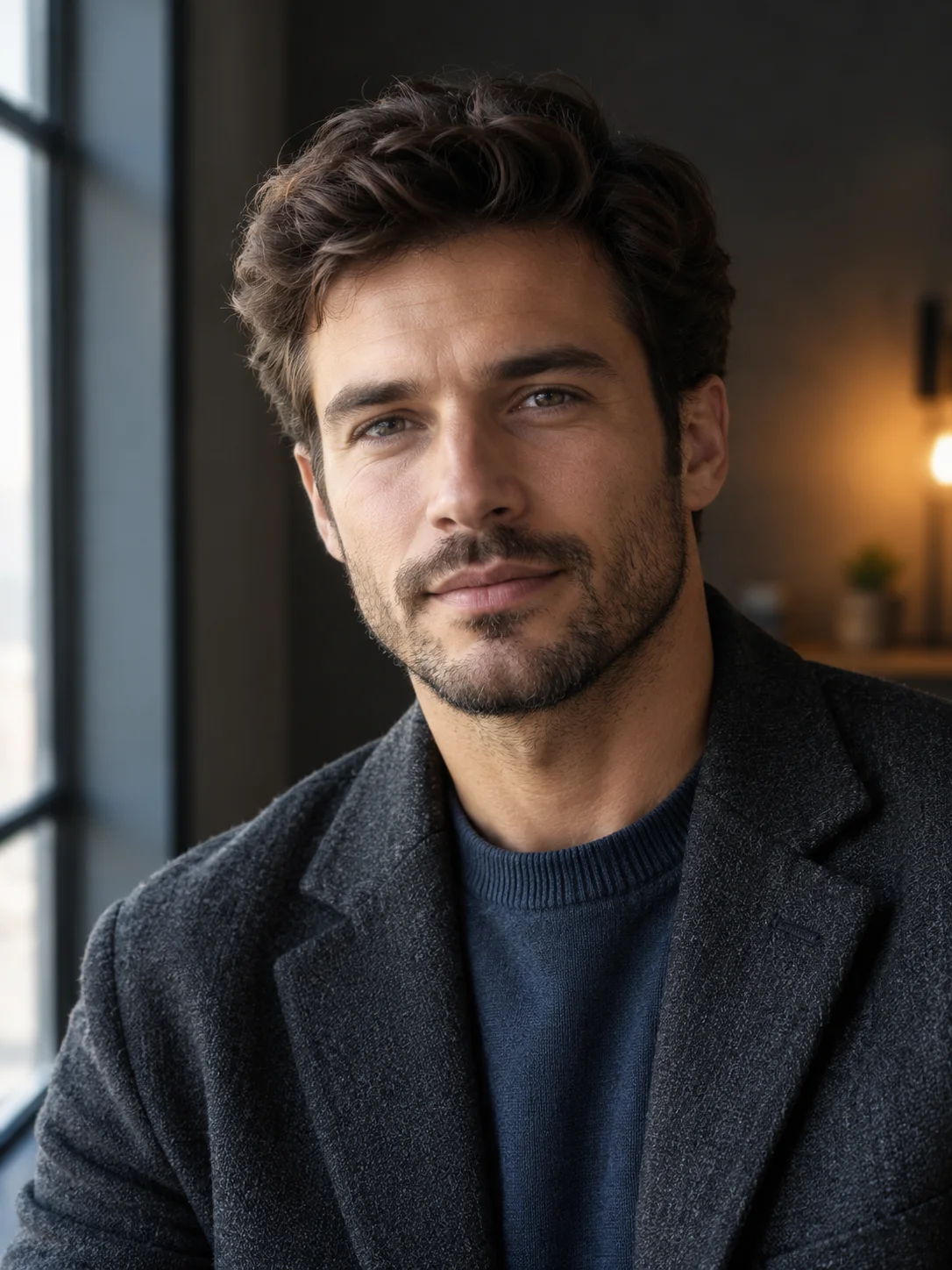 Image edit
AI Portrait Relighting
Change the light direction and mood of a portrait while preserving the face, skin texture, pose, and clothing.
View the workflow and prompt