
Photo editing · Editable preset
Combine Family Photos
Bring two or more reference photos into one family composition with real multi-image input and checks for people, placement and lighting.
Use this preset in the editorUpload your own reference and review settings before generating. The workspace shows available models and the current credit cost.
A real first-pass example
2026-10-08 · Seedream 5 Lite · Original output 2240 × 1680 pixels. Generated with the English preset; these web previews are resized.
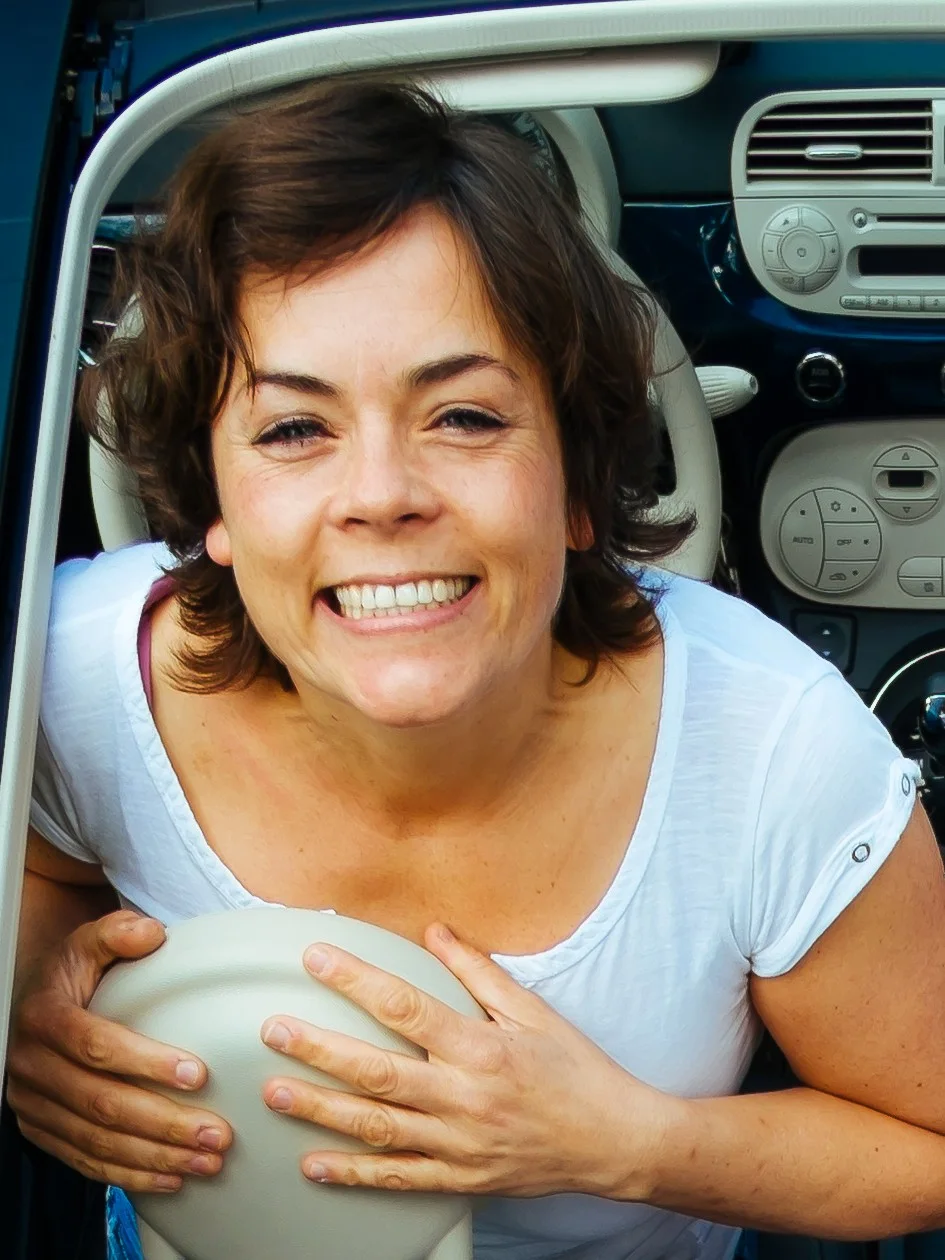
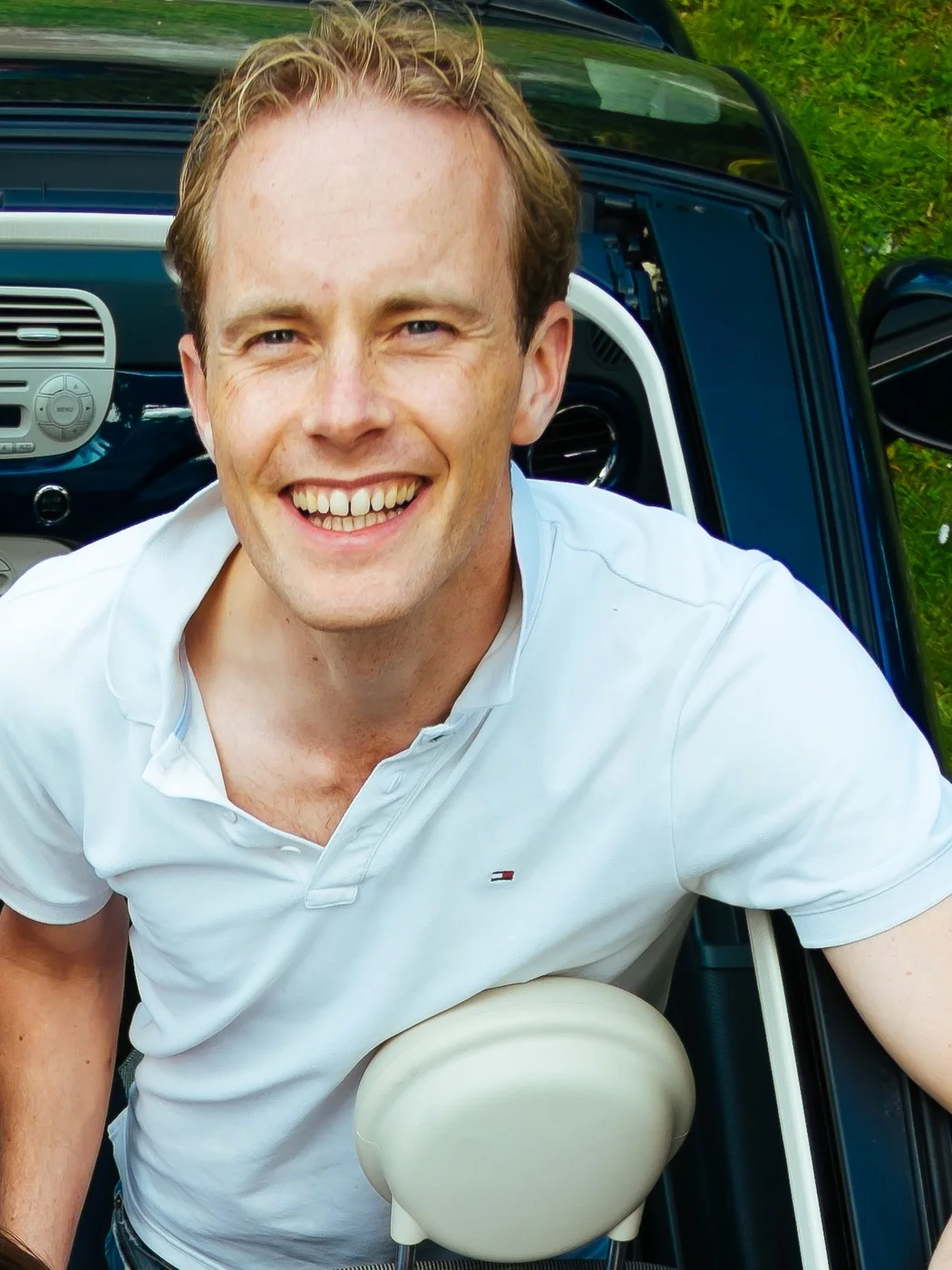
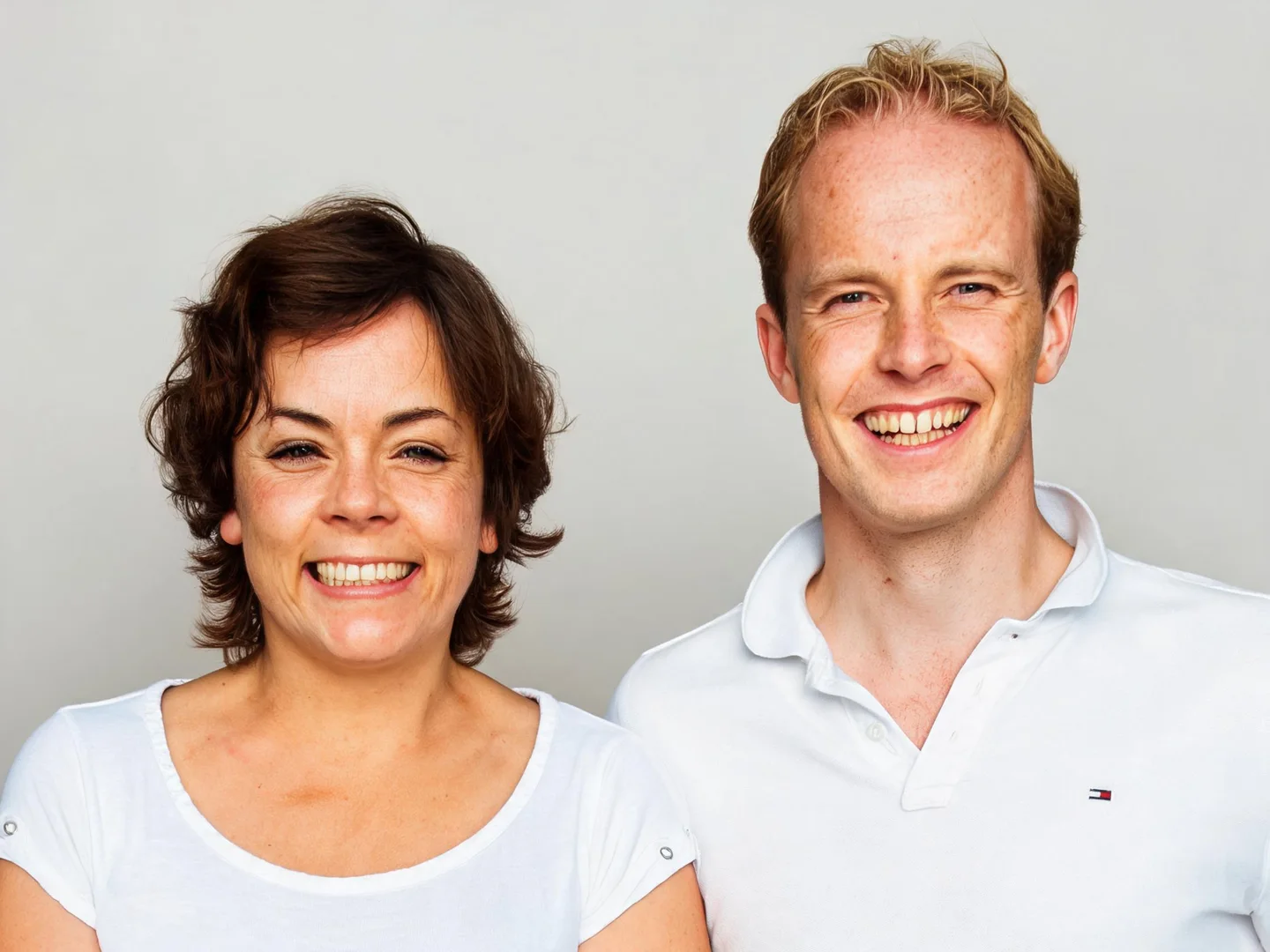
This composition test uses two separate adult crops from one CC0 family photograph. The model places both references together on a neutral background. It tests two-image input and arrangement; it is not evidence of combining independently photographed people, and facial details still need comparison.
This is one generation from these references. Different photos or another run can produce different results. Open an image for a larger preview.
Read the exact prompt used for this example
Combine the people in the uploaded reference photos into one natural family portrait. Use each reference once; do not duplicate a person. Arrange the people in the order of the references from left to right, with comfortable spacing and consistent eye-level perspective. Use a simple neutral studio background and soft even light. Use the reference faces, hair and clothing, keeping individual features distinct. Do not add extra people, text or decorative props. Check the member count, hands and shared shadows.
Reference photo: www.Pixel.la Free Stock Photos / Robert de Bock · CC0-1.0, cropped or resized and metadata removed.
.jpg)
Combining family photos means more than putting two rectangular pictures next to each other. Faces, body scale, perspective and lighting must work together in a single composition. This preset opens the existing image editor in multi-image fusion mode. It accepts separate reference images and starts with an instruction to arrange the people from left to right in reference order.
The result is an AI-created composite, not a record of a gathering that actually happened. Use it for a creative keepsake with the pictured people's permission. The workflow cannot guarantee that every face or hand will remain accurate. Keep the originals and review the member count carefully, especially when one reference already contains several family members.
Choose compatible reference photos
Start with two photos containing clearly visible faces, preferably taken from a similar camera height. Similar lighting direction and a comparable view of the upper body make a believable composition easier. A tiny face cropped from a distant group photograph provides much less useful information than a sharp original portrait. Avoid reference images with heavy filters that change facial proportions.
Use one person per reference where possible. If a photo contains more than one person, spell out which people belong in the final image and count them before generating. This preset begins with two reference photos. Guest generations support up to five sources. Begin with a small group and check each face: more photos do not guarantee accurately rendered people.
Load two images before submitting
The button sets image-to-image mode, multi-image fusion and a 4:3 output ratio. Add at least two distinct reference photos. The workspace now blocks a multi-image submission with fewer than two sources and explains what is missing. A normal single-image edit remains available if you decide that a reference already contains everyone you need.
Opening the preset only fills the working settings; it does not upload photos or start a generation. After the upload completes, verify that every intended reference appears in the source list. Review the prompt and the generation cost shown for the selected model. Do not submit again just because a processing task has not produced its result immediately; use the current task state first.
Write a member and position map
The default prompt uses reference order from left to right. Make that instruction more specific when needed: the adult from the first image on the left and the adult from the second image on the right, both at similar scale. Refer to visible clothing or upload order instead of names the model cannot infer from the photos. State the final person count in your edited prompt.
Keep the first composition simple: a neutral background, comfortable spacing and soft shared light. Adding complex embraces, overlapping hands or a busy dining table increases the number of anatomical and spatial decisions the model must invent. If the photos have very different body crops, request a head-and-shoulders composition that fits both references rather than asking it to reconstruct unseen full bodies.
Check each person, then the shared scene
Count the final people before assessing the overall style. Compare each face to its own reference, watching for blended features, duplicated faces and a missing member. Check the hairline, glasses, expression and visible clothing. A correct group count does not prove that the model assigned the right reference to each position.
Next inspect hands, shoulders, body scale and the space between people. Shared lighting and contact shadows should make sense across the group. If one person looks much larger, request consistent camera distance and a simpler arrangement. If faces blend, shorten the prompt and distinguish references by order and visible features. Return to the original references for another attempt rather than repeatedly editing a composite that already lost an identity.
Export a clearly understood keepsake
Download an approved image and keep the individual references separately. Let recipients know that the scene is a creative composite when there could be confusion about the event. This workflow does not provide evidence that people met, attended a ceremony or stood together in a real location. It also does not validate personal identities.
For a frame or a card, check the crop before printing. The 4:3 setting provides a wider starting canvas; it does not certify a physical print size. The browser image cropper can prepare a destination-specific version after you approve the composition. Do not crop away a person's hair or shoulders merely to fit a template without first checking the result at the intended display size.
Questions before you start
Can I combine only one photo?
A single photo belongs in single-image editing. Multi-image fusion needs at least two reference images. The workspace displays this requirement before it sends a task.
Can I control each person's exact position?
Describe the intended order and spacing in the prompt. There is no dedicated layer-positioning canvas in this workflow, and precise placement is not guaranteed.
Will the people look identical to the originals?
No exact-identity guarantee is made. Multi-image generation can blend or alter features. Inspect each person independently and reject outputs that fail your reference checks.
Prepare your file after approving the edit
The existing browser tools can crop, resize or compress an approved file. These operations are separate from hosted model generation; keep a full-size copy first.
Free Image Cropper