
Photo editing · Editable preset
Pet Portrait from Photo
Turn a clear pet photo into a painted portrait with an editable prompt, a 3:4 starting canvas, and a practical likeness checklist.
Use this preset in the editorUpload your own reference and review settings before generating. The workspace shows available models and the current credit cost.
A real first-pass example
2026-10-08 · Seedream 5 Lite · Original output 1680 × 2240 pixels. Generated with the English preset; these web previews are resized.
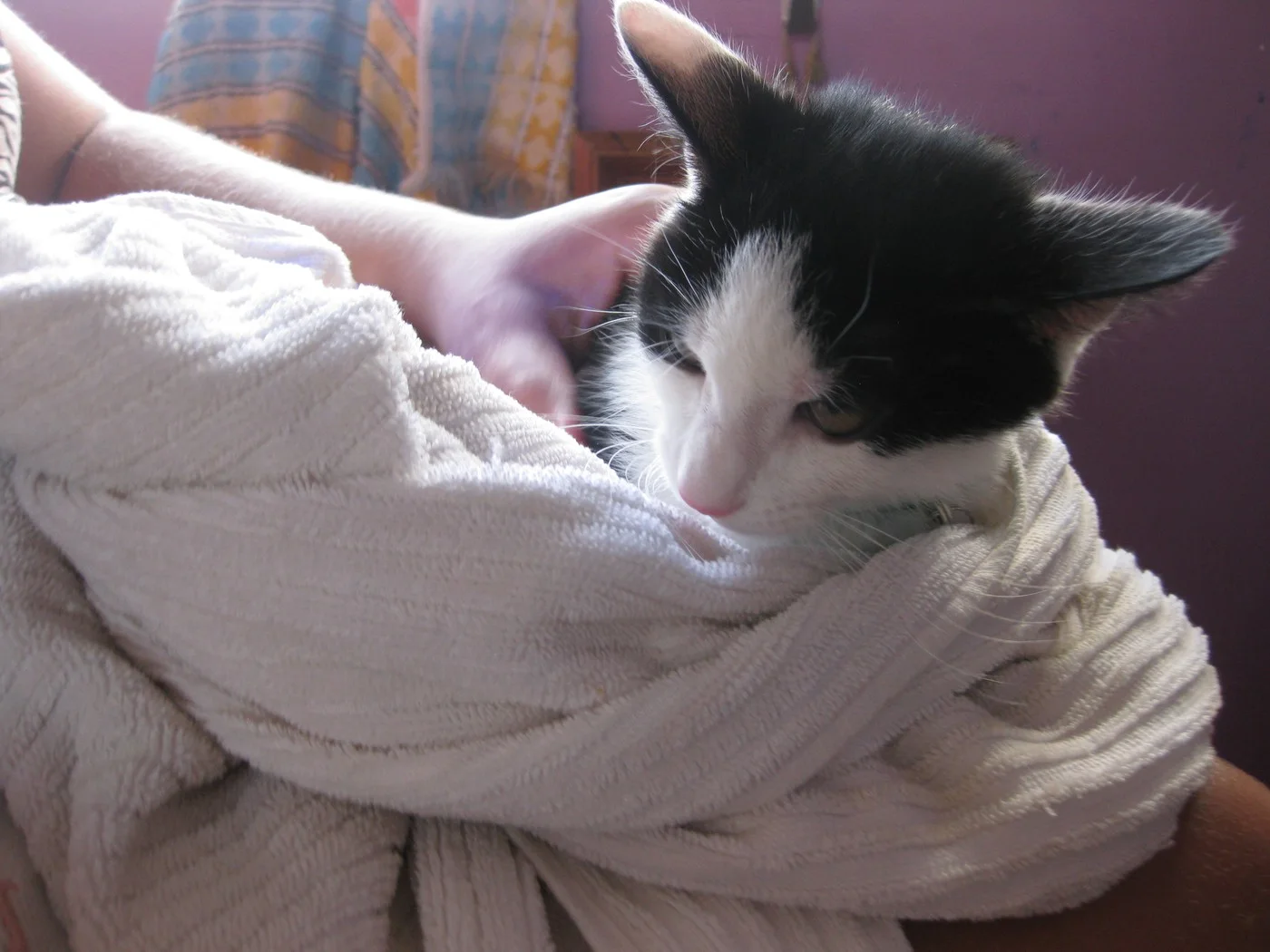
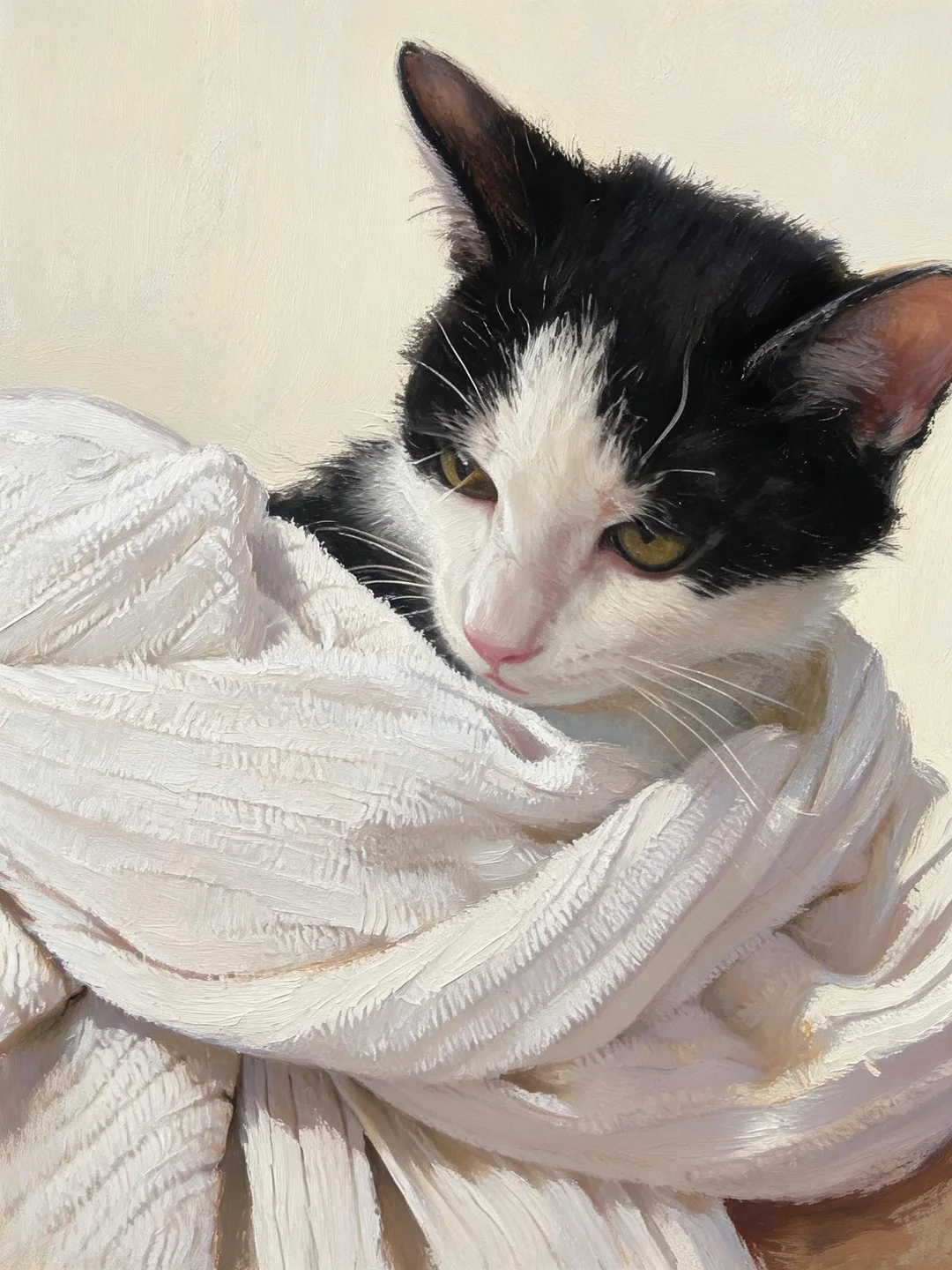
The first result keeps the black-and-white coat and towel while replacing the busy background with a painted surface. The right ear remains close to the edge. Check the crop before using this as a framed gift; the prompt does not guarantee extra space around every ear.
This is one generation from these references. Different photos or another run can produce different results. Open an image for a larger preview.
Read the exact prompt used for this example
Create a painted pet portrait from the uploaded photo on a quiet warm off-white background. Use the photographed animal as the reference for its coat markings, eye color, ear shape and muzzle. Keep the visible pose and number of animals. Use restrained brush texture and leave a little space around the ears. Do not add a collar, costume, lettering or extra animals. Keep the portrait recognizable; avoid inventing hidden features.
Reference photo: OboeBlanket · CC0-1.0, cropped or resized and metadata removed.

A good pet portrait depends on the small features that make this animal recognizable: the uneven patch above an eye, the shape of a folded ear, the direction of the whiskers. This workflow starts with your photograph and a restrained painting prompt. It aims to change the presentation while keeping those visible reference features useful. The preset opens the existing image editor; it does not order a physical portrait or commission a human artist.
Use it for a gift draft, a personal keepsake or an illustration you plan to review before printing. Upload a photograph you can use, inspect the prompt, and generate when the reference is ready. A painted interpretation can change markings or proportions, so treat the first result as a proof to inspect rather than a finished likeness you must accept.
Choose a reference that actually shows the pet
Start with one sharp photograph taken near the animal's eye level. Keep both eyes visible when possible, and leave space above the ears and below the chin. A bright window or open shade often gives clearer reference information than a flash photograph with glowing eyes. The editor cannot reliably recover a hidden eye or a cropped ear just because the prompt asks for one.
Use the original image file rather than a screenshot of a social post. If the photograph contains several animals, decide whether the portrait should include all of them. The default prompt keeps the visible animal count. Crop a single pet first if you only want one subject; a sentence about one dog will not remove all ambiguity from a crowded group photo. Avoid tight cropping that cuts off important fur contours.
Start with the portrait preset
The button on this page opens image-to-image mode, loads the pet portrait prompt and selects a 3:4 output ratio. Upload one source photo in the workspace. The source file stays under your control; opening the preset does not upload a photo or start a paid job. Review the model and displayed generation cost before submitting. The model available to your account is selected by the workspace, not secretly forced by this page.
Change one visual decision at a time. For example, request a pale blue background while leaving the brushwork instruction intact. For an oil-paint impression, replace the restrained painted texture instruction with a short description of the desired surface. Adding unrelated camera, costume and fantasy instructions at the same time makes it harder to identify why the result stopped looking like the reference.
Describe markings before decorative details
If the animal has a distinctive feature, name it in ordinary words: a white blaze on the forehead, a dark left ear, or a small pink patch on the nose. Describe its position from the viewer's perspective where that avoids confusion. Do not ask the model to invent a breed-standard face if the real pet has different proportions. The reference should carry more weight in your review than an attractive but generic animal.
The preset omits lettering, costumes and extra animals. Keep those exclusions for the first draft. If you eventually want a name or date under the portrait, add typography as a separate layout step so that a spelling correction does not require another image generation. A decorative collar can obscure the neck outline and change the apparent head size; make that choice after checking the basic portrait.
Inspect the result at face size
Compare the output and source at a similar zoom level. Check the eyes, nose, ears, muzzle width and coat pattern before judging the background. Look for duplicated whiskers, missing paws and artificial fur shapes where a toy or hand overlapped the animal. These are useful reasons to reject a result even when it looks appealing as a thumbnail.
If the coat pattern changed, shorten the styling request and explicitly name the missing marking. If the head is too rounded, remove words such as cute or baby and return to the original photo for the next attempt. If an ear was cropped, prepare a roomier reference or choose a different output ratio. Repeatedly editing a flawed generated image can compound the initial mistake; keep the original photograph available.
Prepare a file for a gift or print
Download the result from the workspace and check its actual pixel dimensions. The 3:4 ratio describes the shape, not a promised print size or a DPI guarantee. Use the browser image resizer for a crop or output dimension that your chosen print service specifies. Enlarging a small file does not recover verified fur detail, and a larger download is not automatically a sharper likeness.
Keep an untouched source and save an approved result separately. For a gift, view a small proof before ordering a large physical print. This workflow produces a raster image; it does not include framing, shipping, transparent cut paths or print-shop color proofs. Check commercial-use terms for the model and any source material before listing a generated design for sale.
Questions before you start
Can I include two pets?
A photograph containing both pets can be used in single-image editing. State the intended animal count and check both faces. Separate reference photos require multi-image fusion and can introduce composition errors; this preset itself starts with one source image.
Will the markings match exactly?
No. The prompt asks the model to follow visible reference features, but it cannot guarantee exact markings, anatomy or identity. Compare the output and revise or reject it when an important detail changes.
Can I print the result immediately?
Download and inspect it first. Check pixel dimensions, crop and the printer's requirements. This is an image editing workflow, not a promise of a particular physical print quality.
Prepare your file after approving the edit
The existing browser tools can crop, resize or compress an approved file. These operations are separate from hosted model generation; keep a full-size copy first.
Free Image Resizer