
Image to video · Portrait
Image to Video Portrait
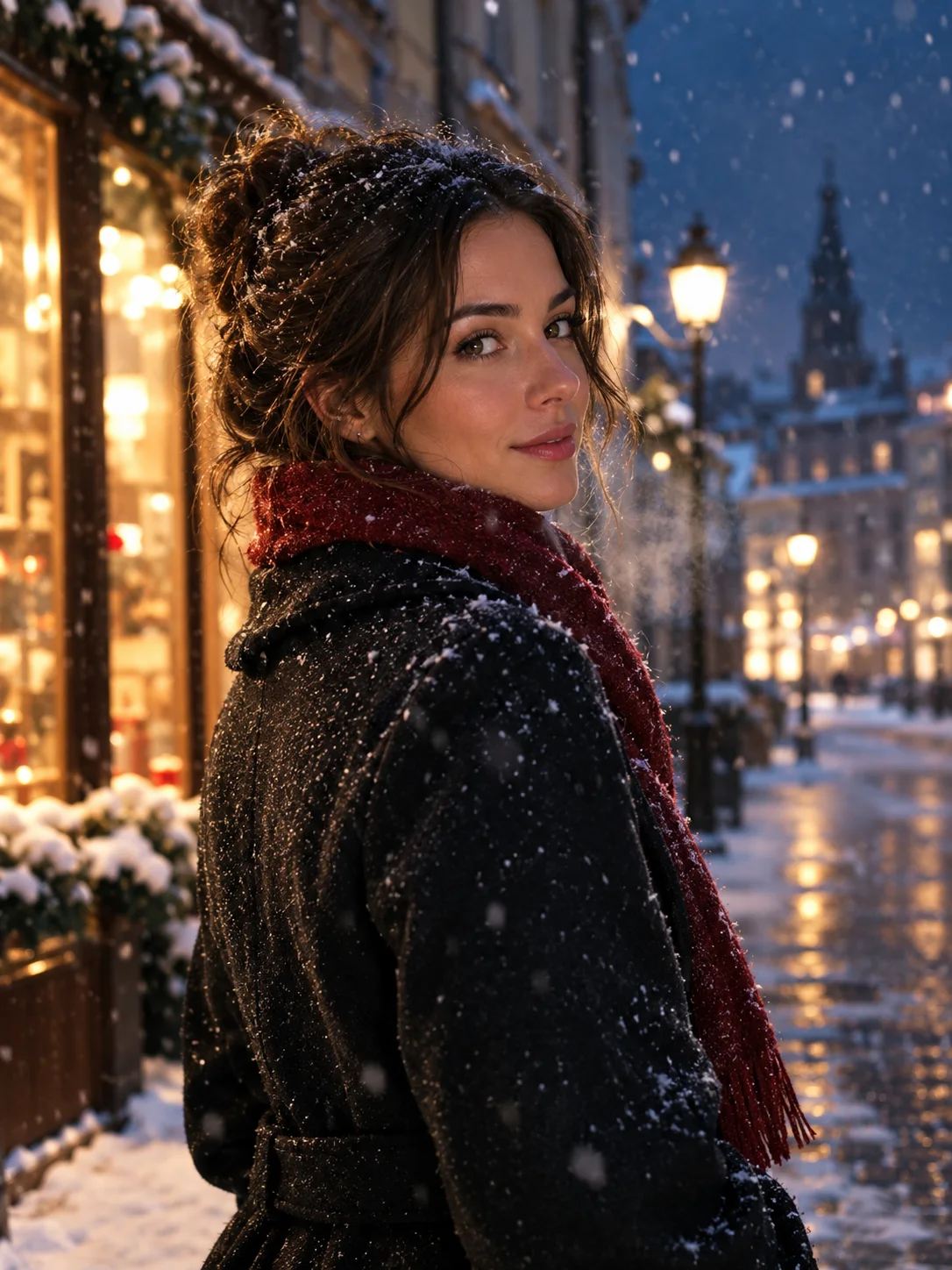
Animate a portrait still with a subtle head turn, drifting snow, and a slow camera move while keeping the face consistent.
Upload a portrait and open the video workspace with a restrained motion prompt. The model receives the still as the visual reference, then adds a small turn, moving hair, falling snow, and a slow camera push. Review the face and costume across the clip.
Starts from a still image, then adds controlled motion.
Updated for the 2026 Halloween season
How this scene works
- 01
Choose a still with a stable face
Use a sharp portrait with the full head and shoulders visible. Leave space in the direction of the intended turn so the face does not leave the frame.
- 02
Ask for one clear movement
A gentle head turn plus a slow push is easier to keep consistent than turning, walking, talking, and changing the background at once.
- 03
Check the first and last frames
Pause at the start, middle, and end of the clip. Look for face drift, warped hands, changing clothing, and a background that slides unnaturally.
Editable prompt
The video prompt locks the identity, costume, and body proportions to the reference, then asks for a small head movement, natural hair motion, drifting snow, and a smooth push-in.
Model prompts remain in English because the image and video models are tuned for it. The surrounding guidance is localized.
Use the provided portrait as the exact visual reference and first frame. Create a continuous five-second cinematic portrait animation. Preserve the face, hairstyle, clothing, body proportions, crop and lighting. The subject slowly turns their head a little toward the camera with a natural subtle expression. A light breeze moves loose hair and the coat edge. Snow continues falling at a natural pace. Add a slow, smooth push-in and keep anatomy stable. Do not change identity, replace the outfit, add people, introduce cuts, add text, logos or watermarks.Copy this prompt into the workspace or use the prepared button above.
Questions before you start
What image should I upload?
Use a clear portrait with one main subject and a readable background. The first frame becomes the visual anchor, so a blurry or heavily cropped source is a poor starting point.
Can I add speech or music?
The workflow may support audio depending on the active provider and model. Check the controls and displayed cost; a silent clip is often the simplest first test.
Can I use a generated image?
Yes, if you have the rights to the source and the generated result. Download and review the still first, then upload it as the first frame.
Start with your own reference
Open the workspace, review the settings and credit cost, then generate. Opening a scene never submits a paid task.
Related scenes
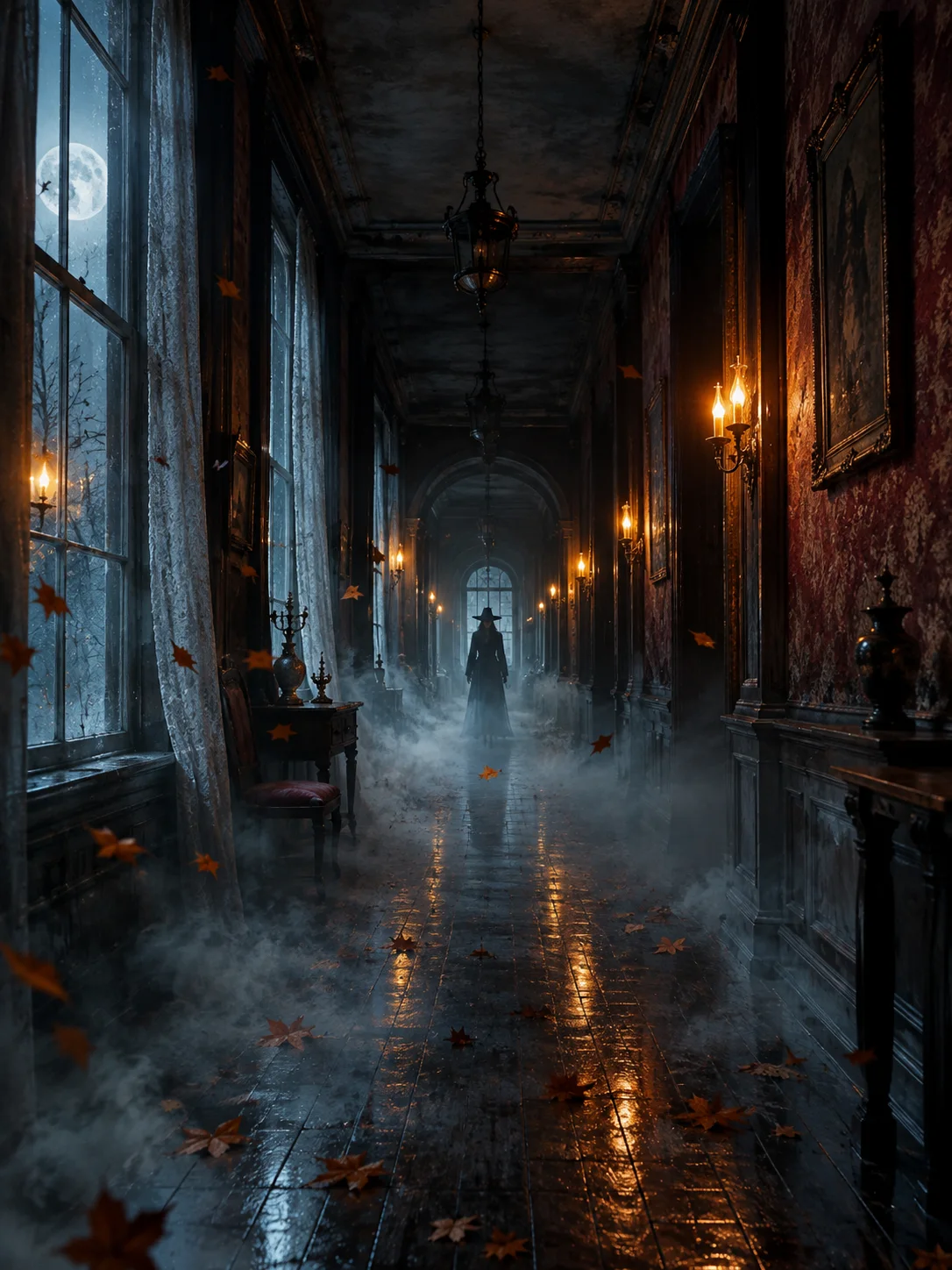 Image to video
Halloween Video Effect Generator
Animate a Halloween still with drifting fog, flickering lanterns, and a slow camera push while keeping the scene recognizable.
View the workflow and prompt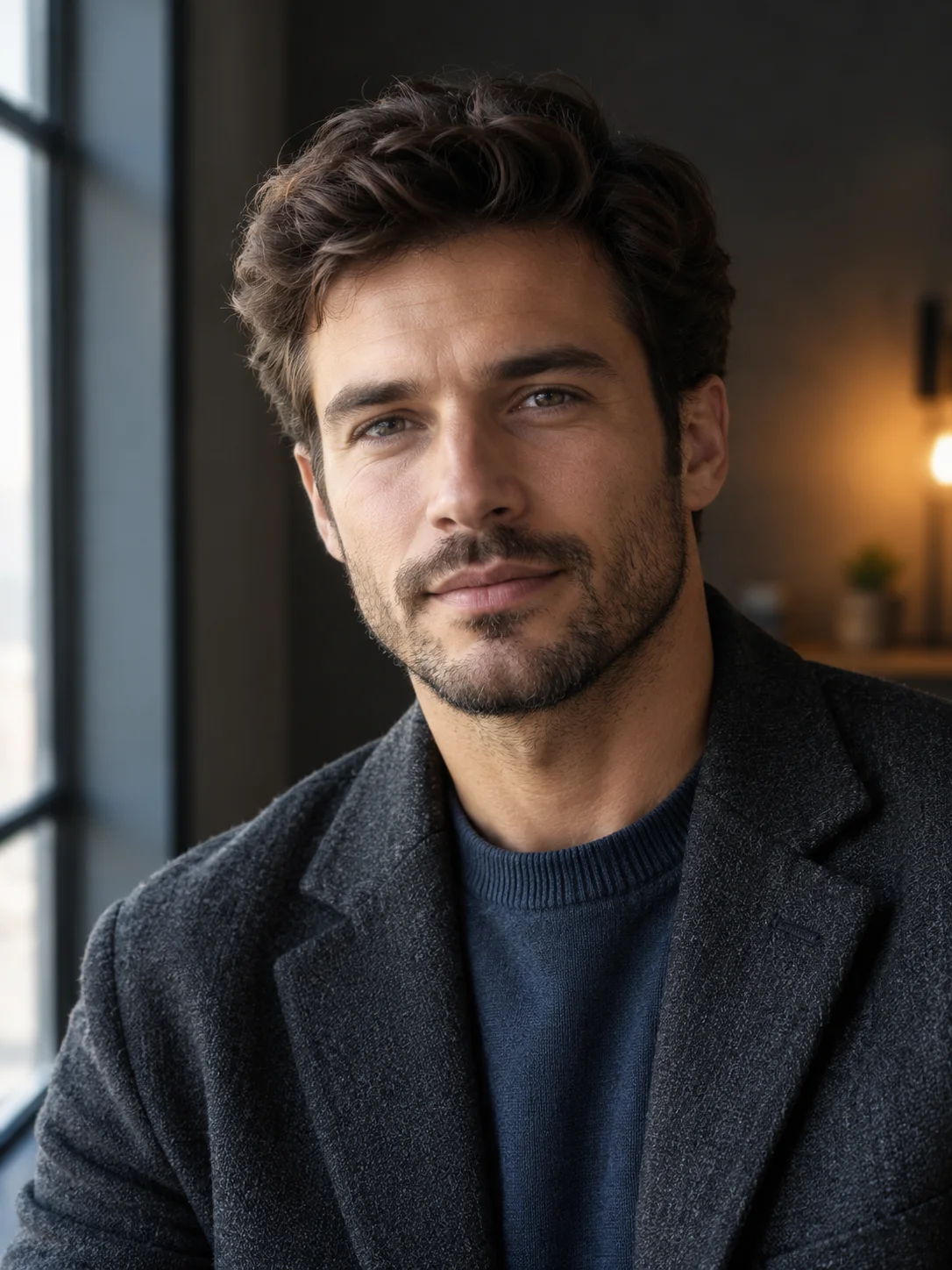 Image edit
AI Portrait Relighting
Change the light direction and mood of a portrait while preserving the face, skin texture, pose, and clothing.
View the workflow and prompt Image to video
Black Friday AI Video Generator
Create a short product reveal video for a Black Friday campaign from one product still, without inventing a fake discount.
View the workflow and prompt