
Image to video · Halloween effects
Halloween Video Effect Generator
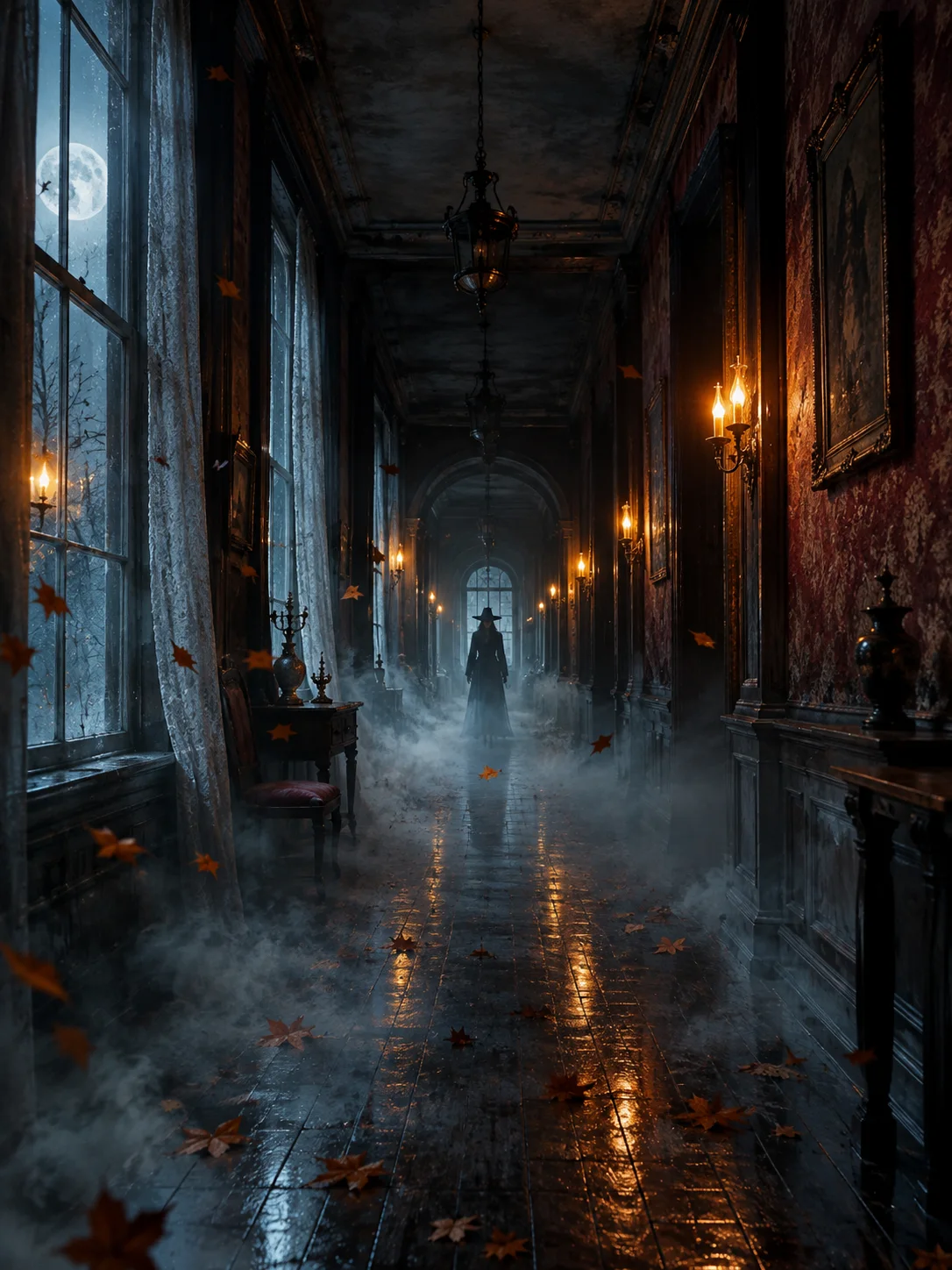
Animate a Halloween still with drifting fog, flickering lanterns, and a slow camera push while keeping the scene recognizable.
Start with a still image, then open the video workspace with a short Halloween effects prompt. The first version should use restrained motion: fog drift, a small head turn, flickering light, or a slow push-in. Large action and scene cuts are harder to keep consistent.
Starts from a still image, then adds controlled motion.
Updated for the 2026 Halloween season
How this scene works
- 01
Prepare a strong first frame
Use a still with a clear subject, readable background, and stable composition. Leave room for the camera to move without cutting off the face.
- 02
Choose one or two motions
Fog drift plus a slow push is easier to control than a costume change, a turn, running, and a scene transition in the same clip.
- 03
Review motion and identity frame by frame
Check the first, middle, and last frames for face drift, warped hands, flickering objects, or a sudden costume change.
Editable prompt
The video prompt names the exact visual reference, the duration, the camera movement, the atmosphere, and the invariants that must not change. It also excludes cuts, extra characters, and text.
Model prompts remain in English because the image and video models are tuned for it. The surrounding guidance is localized.
Use the uploaded image as the exact visual reference and starting composition. Create a continuous five-second cinematic Halloween atmosphere shot. Keep the subject, costume, facial identity, body proportions and background geometry consistent with the reference. Add a gentle drift of low fog, a slow flicker from the warm wall lamps, a few floating dead leaves, and a smooth slow push-in. Keep the action subtle and physically believable. Do not add characters, weapons, gore, sudden cuts, costume changes, readable text, logos or watermarks.Copy this prompt into the workspace or use the prepared button above.
Questions before you start
Do I need to generate the still first?
This workflow starts from an image. You can use a photo you already own or create a still in the image editor, approve it, then open the image-to-video workspace.
How long should the first clip be?
Start short. The workspace offers several durations, and a restrained five-second motion is usually easier to inspect than a long sequence with many changes.
Can the video add audio?
Audio availability depends on the active video model and provider. Check the workspace controls and credit cost rather than assuming every model includes sound.
Start with your own reference
Open the workspace, review the settings and credit cost, then generate. Opening a scene never submits a paid task.
Related scenes
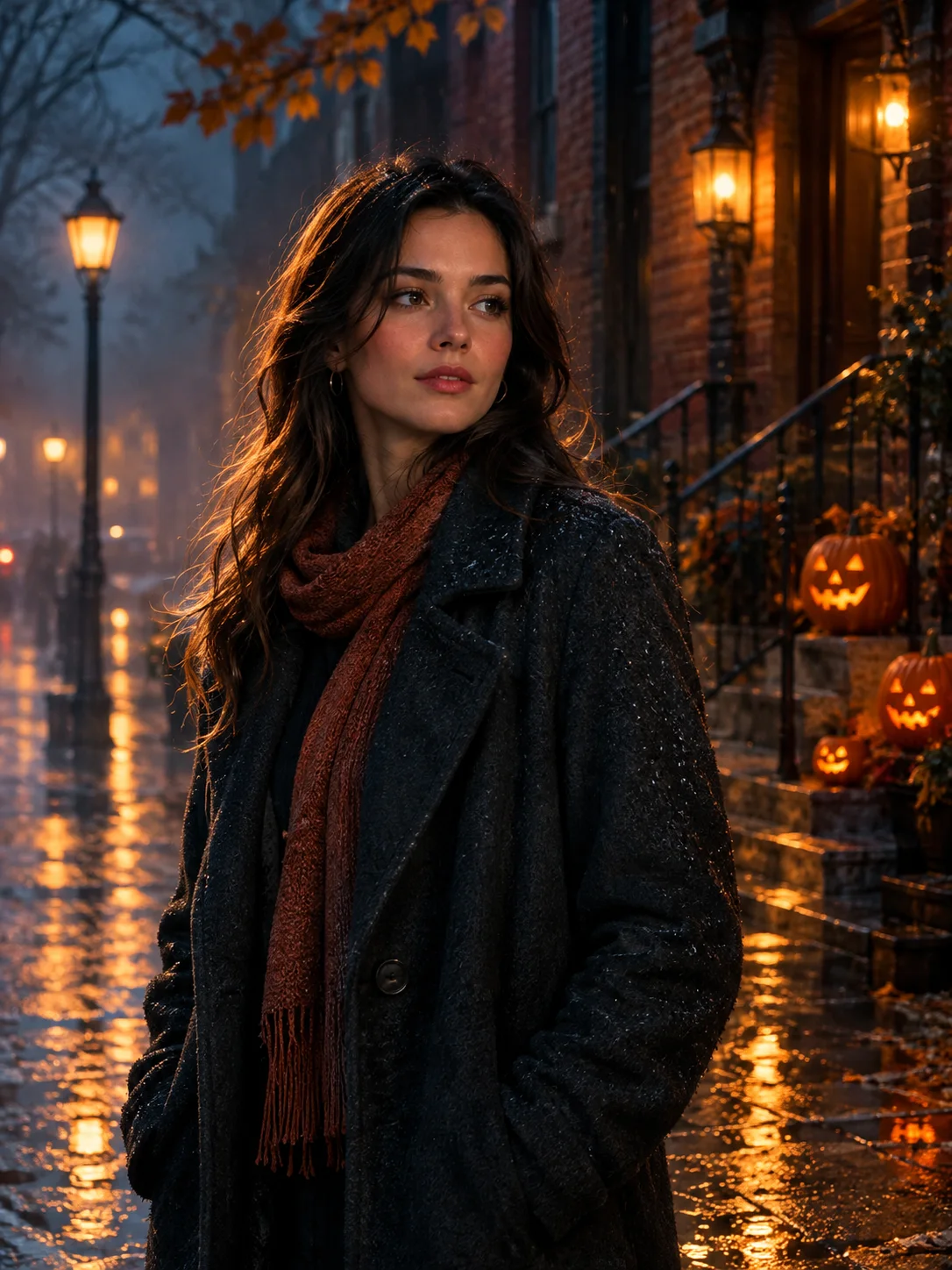 Image edit
Halloween Photo Editor
Add fog, lantern light, and a restrained haunted atmosphere to a photo without replacing the person or turning it into a cartoon.
View the workflow and prompt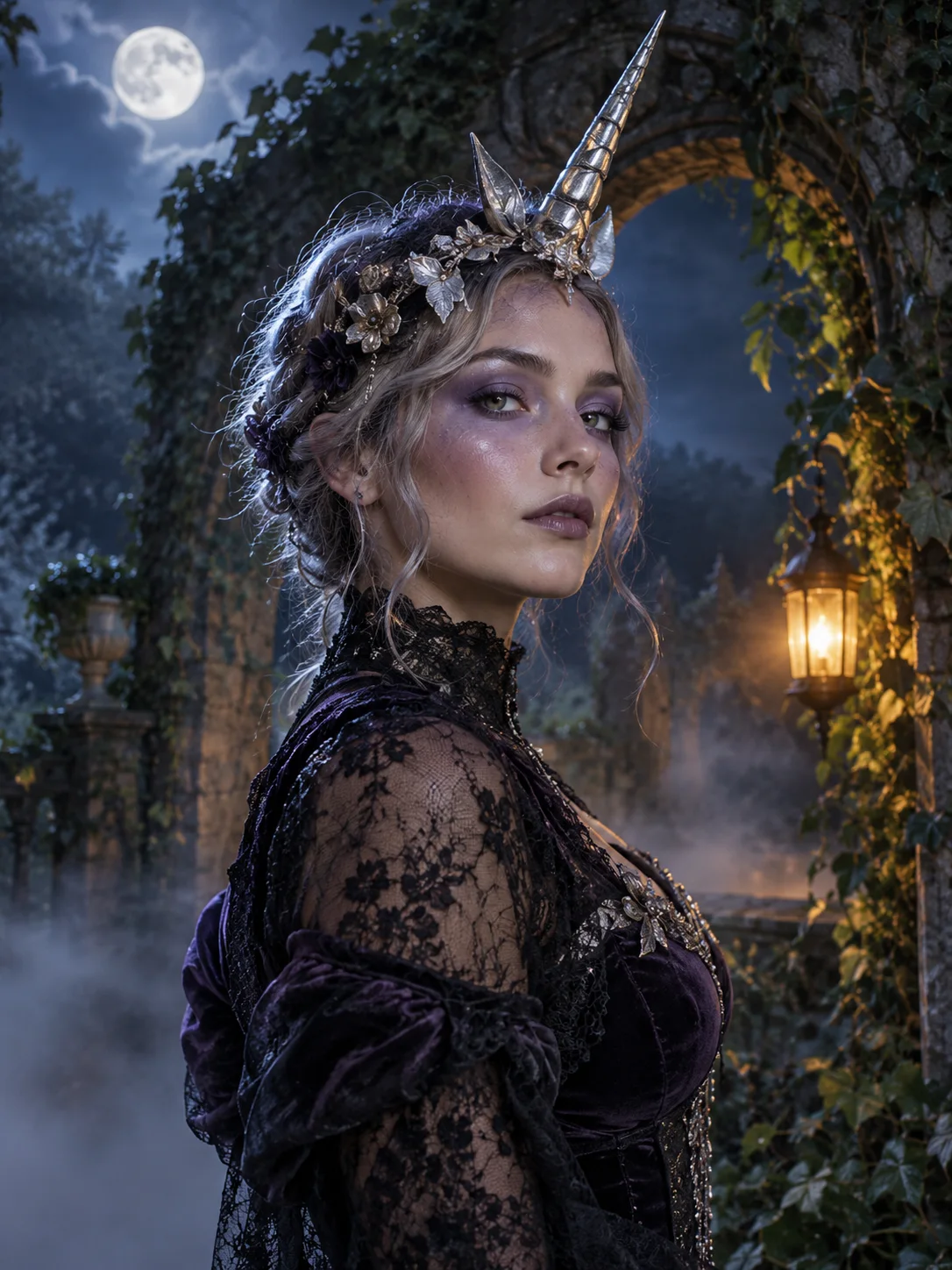 Image edit
Haunted Unicorn Portrait
Create an original haunted unicorn costume portrait from a selfie, with a moonlit garden, lace, silver details, and a preserved face.
View the workflow and prompt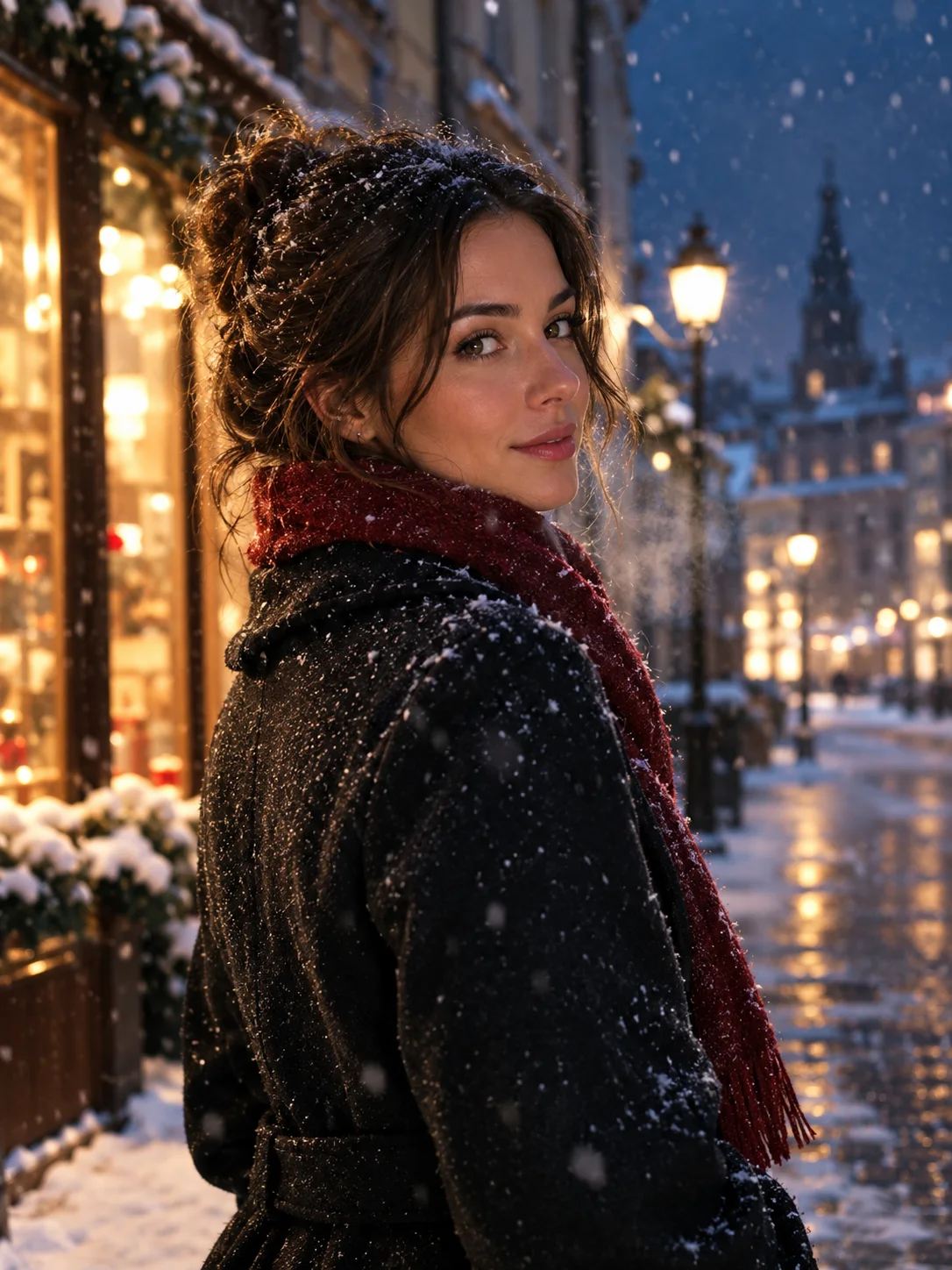 Image to video
Image to Video Portrait
Animate a portrait still with a subtle head turn, drifting snow, and a slow camera move while keeping the face consistent.
View the workflow and prompt